
Orders
From table to kitchen, no paper.
Updated 26 October 2026
On this page
- What it's for
- How orders arrive
- The Orders board
- One-tap shortcuts
- Order statuses
- Reviewing orders before they go to the kitchen
- Unusual table alerts
- Calls from tables
- Unpaid orders and «Mark as paid»
- Pickup orders
- Undoing a mistake: «Undo last»
- History and old orders
- Messaging the guest on WhatsApp
- Tips
- Common problems
What it's for
Your guests order from the table on their phone and the order reaches you instantly, with the table number, in Orders and on the kitchen screen. No paper and no mistakes taking orders. Orders are included in your plan.
How orders arrive
- From a table with a QR code: the guest scans their table's QR, adds dishes with + and sends. Their order sheet shows a fixed «Table 12»: they don't have to type anything.
- Without a table QR (for example, with the general QR): when sending, the guest types their «Table no.». If your venue has tables set up, it's required.
- Pickup: the guest orders from home and comes to collect it. Only available if you have Online payments with Stripe ready and pickup orders turned on.
- Delivery: if you deliver with your own staff (see Your own delivery).
- Taken by your team: with the New order button (see Till and POS).
The Orders board
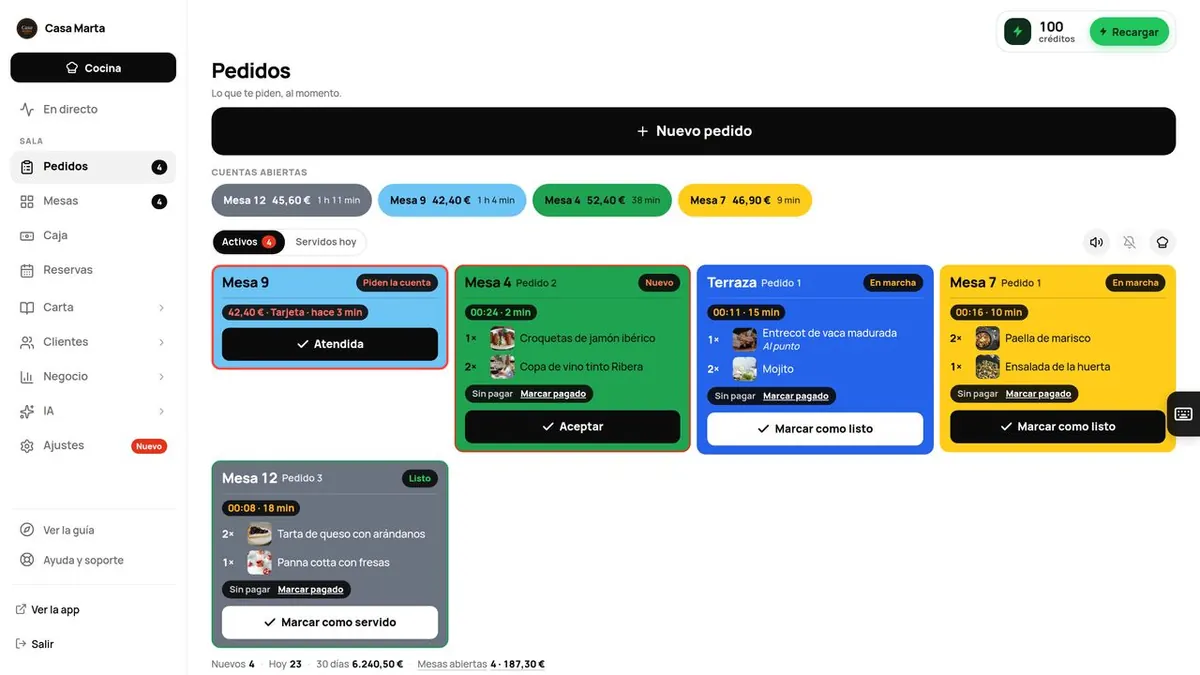
- At the top: New order, the Open tabs row (explained below) and the Active (with the number of orders in progress) / Served today switch.
- Three icons: the speaker (sound), the bell (alerts on this phone or tablet) and the chef's hat (opens the kitchen screen).
- Each card shows the table, «Order 2» if it's their second round, the dishes with their options and notes, and a timer.
- At the bottom: «New · Today · Open tables», with what's still to be paid.
The board updates itself every few seconds. No need to reload.
One-tap shortcuts
So you don't have to hunt for anything at peak time, there are two shortcuts:
«Open tabs»: charge in two taps
At the top of Orders (and Live) there's a pill for each table with an open bill: its number, what it owes and how long it's been open. The one that's been open longest comes first, as it's usually the next to ask for the bill.
- Tap the table's pill. Its bill opens, without searching for it on the floor plan.
- Tap Cash or Card to charge it in full, or Charge to split it or add a tip (see Charging a table).
If the guest is paying from their phone, the pill says «payment in progress»: wait for it to finish. Anyone who can take payments (waiter, manager and owner) sees it.
«On the floor now», in «Live»
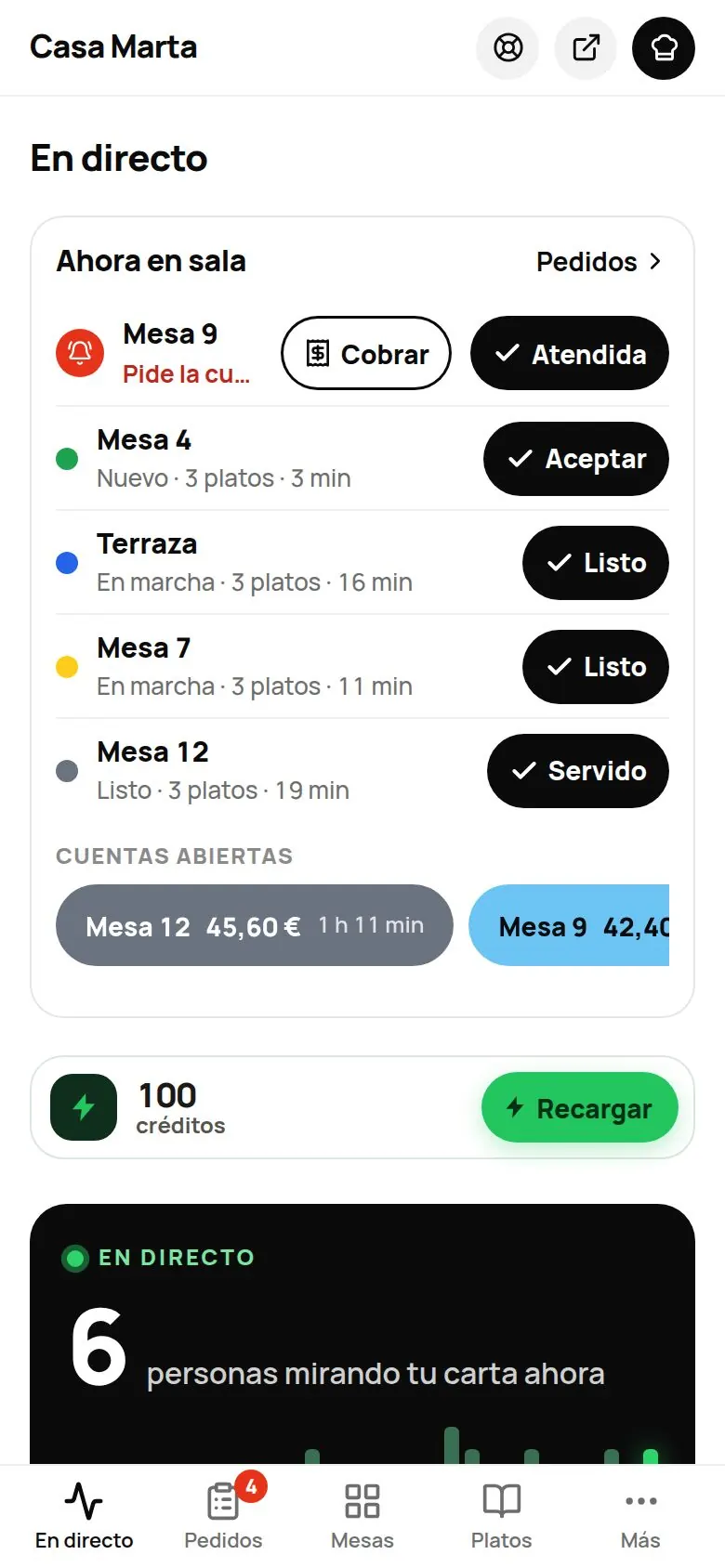
At the top of Live, the On the floor now block shows calls from tables and orders in progress (most urgent first), each with the button for its next step:
- Calls: Done. If a table asks for the bill, also Charge, which opens their bill.
- Orders: Accept → Ready → Served.
- Anything that needs a decision (an order «To confirm», a ready pickup order that's paid on collection, or an invoice request) has View, which takes you to Orders.
- If the order has a phone number, an icon to message the guest on WhatsApp.
Below, the Open tabs. When there's nothing pending: «All quiet: nothing to serve and no calls.»
Order statuses
| Status | What it means | Button to move it on |
|---|---|---|
| New | Just arrived and nobody has touched it. | Accept, or Ready if it's ready straight away (a drink, a coffee) |
| In progress | Being prepared. | Mark as ready |
| Ready | Ready to take to the table. | Mark as served |
| Served | It's on the table. Moves to «Served today». | — |
| To confirm | Waiting for you to review it before it goes to the kitchen (if you've turned this on). | Accept or Reject |
On the kitchen screen, the same steps are called Start, Mark as ready and Mark as served.
The timer turns green under 10 minutes, amber from 10 to 20 and red from 20 onwards.
What your guest sees at each step
On their phone they see the tracker: «Received · Cooking · Ready». For example: «Order sent! It's reached the kitchen. We'll bring it to your table.», then «We're preparing it», «Ready! It's on its way to your table.» and «Served. Enjoy!». On the menu they have «My orders» with everything ordered from that phone.
Reviewing orders before they go to the kitchen
By default, table orders go straight to the kitchen. If you'd rather review them first (for example, when you're starting out), go to Menu › Dishes › Venue settings, «Payments and orders» block, turn on Review table orders before the kitchen and press Save.
From then on, orders arrive as To confirm and the guest sees «Waiting for the restaurant to confirm». Press Accept to send it to the kitchen, or Reject (you have to tap twice: «Reject? Tap again»). The guest will see «The restaurant couldn't accept your order».
Even if you don't turn this on, an order sometimes comes with the warning «Confirm it with the table» (for example, a large unpaid first order). Check with the table and press Confirm or Reject.
Unusual table alerts
If a table gets orders from more than 6 different phones in 10 minutes, or more than €300 pending, we alert you with a notification and a red card at the top of Orders and «On the floor now»: «Table 7: 8 different phones in 10 min». Look at the table: if there aren't that many people, its QR may be circulating outside. Mark the orders as Fake order and reprint its QR in Order security. Got it removes the alert. The thresholds are in Order security.
A phone with 2 fake orders in 30 days is blocked for 7 days, in every The Food Please restaurant if they were in different ones.
Calls from tables
If the guest taps «Call the waiter» or «Ask for the bill», a card appears in Orders (and in the kitchen): «Calling the waiter», «Asking for the bill» or «Invoice requested». If they ask for the bill, you'll see the amount and how they want to pay (card or cash), with Charge. Once you've dealt with it, press Done. After 3 minutes without being handled, the call turns red. More in Tables, calls and the bill.
Unpaid orders and «Mark as paid»
If you take payments through the app, each card says «Paid» or «Unpaid». If a table pays you at the venue, press Mark as paid and choose how: Cash, Card or Other.
Pickup orders
- Each pickup order shows its time («Pickup 13:40» or «As soon as possible»), the guest's name and a large code (for example, A12). The guest shows that code when collecting.
- When it's ready and you hand it over: Hand over if it's already paid, or Charge and hand over (cash or card) if they pay on collection.
- If nobody turns up, No-show appears from 60 minutes after the pickup time.
Pausing pickup orders when things get hectic
The manager and owner have a bar in Orders: «Taking pickup orders», with +10 min wait, Pause 20 min, Pause 40 min and Close until tomorrow. While paused, the guest sees «We're not taking pick-up orders right now. Come back from HH:MM.». To start again, press Resume. There's an identical bar for delivery orders.
Undoing a mistake: «Undo last»
Marked the wrong order as served? For the next 10 minutes you'll have the Undo last strip (for example, «Undo last · Table 4 · Ready»). Press it and the order goes back to its previous status.
History and old orders
- In History you search by table or name and filter by All, Pending or Served.
- Orders more than 12 hours old that were never closed are hidden: you'll see «N orders older than 12 h still open (hidden)». Press Mark as served and confirm to clear them.
Messaging the guest on WhatsApp
If the order has a phone number (pickup and delivery orders), the card has the WhatsApp Notify icon. It opens WhatsApp on your phone or tablet with the message already written: «Hi [name], your order is in progress 👨🍳» or «… is ready ✅». You send it. More in Alerts.
Tips
- Keep the panel open on a phone or tablet at the bar with the sound and the bell on.
- Mark orders as served when you take them out: that way the board only shows what's pending and your kitchen time figures are accurate.
- Place a test order from a table before you open (see Getting started).
Common problems
| What happens | Why | What to do |
|---|---|---|
| Nothing sounds when an order comes in | The sound is off or the browser has blocked it. | Tap the speaker (or the «Sound off · Tap here to turn it on» strip) and keep the panel open. |
| You don't get alerts on your phone | You haven't turned on the bell on that phone, or on iPhone it isn't on the home screen. | See Alerts. |
| The guest sees «Tell us your table number.» | They came in without their table's QR. | Ask them to type their number, or scan their table's QR. |
| The guest sees «That table doesn't exist» | The table number isn't on your list. | Check your tables in QR. |
| «Your role doesn't allow this» | Your role doesn't have that permission. | Ask a manager or the owner. |