
Menu languages
Your menu in each guest's language.
Updated 26 October 2026
On this page
What it's for
Your guests from abroad read your menu in their own language, with the same prices and allergens. That way they order with confidence, and you don't have to explain every dish.
- English: included in your plan.
- Multilingual menu (module): your dishes in up to 8 languages (English, French, German, Italian, Portuguese, Catalan, Dutch and Chinese), and everything new you add is translated automatically. It costs 9.90 €/month or 99 €/year + VAT, and it's included in the "Guests come back" and "Everything" plans.
- The menu buttons and the AI Waiter (ordering, paying, booking, the guest guide, the chat…) are already available in 8 languages: Spanish, English, French, German, Italian, Portuguese, Catalan and Japanese.
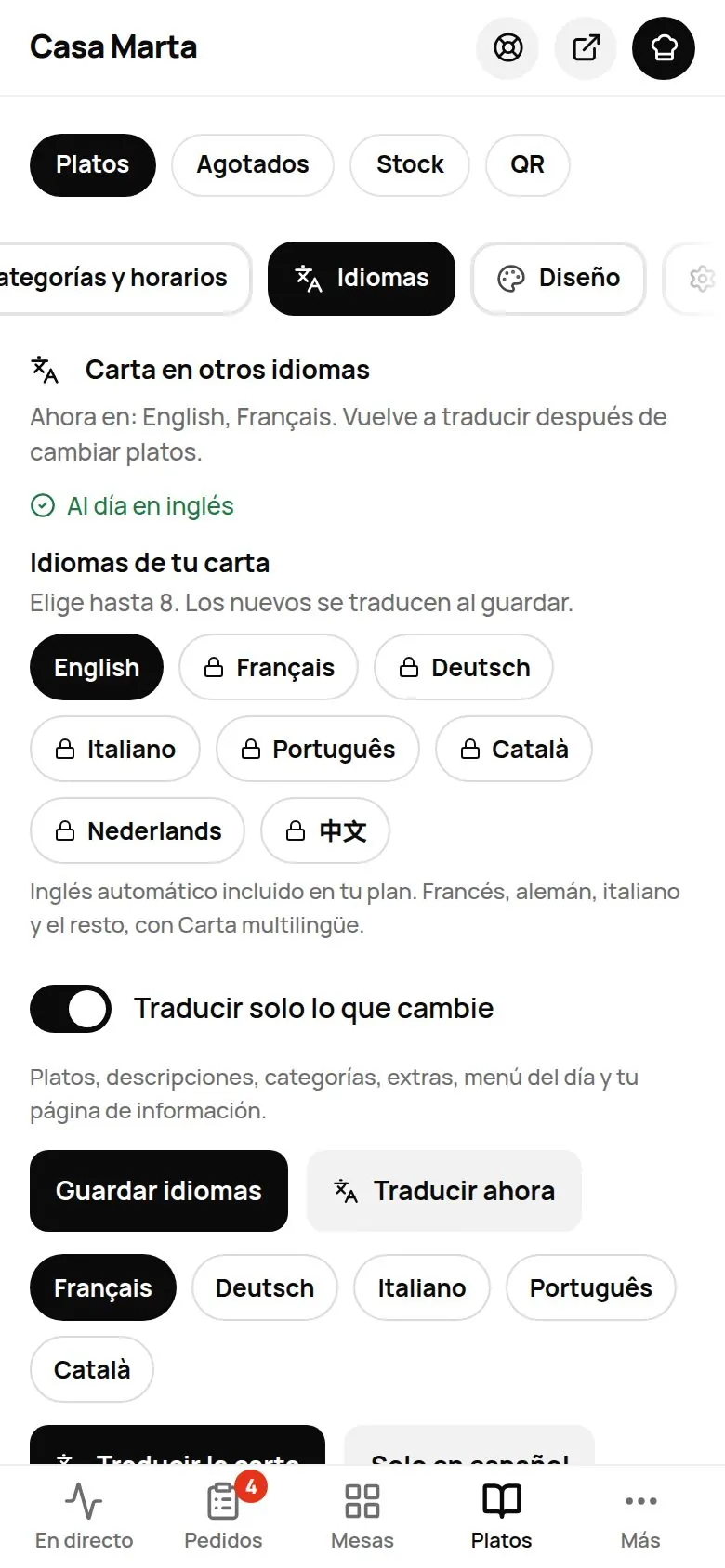
Translating your menu
With the included English
- Go to Menu › Dishes › Languages.
- Press Translate the menu. You'll see «Menu translated into N languages.»
- Check the names before you show it to guests: it's a basic translation. You can correct any dish (see below).
- When you change or add dishes, press Translate the menu again.
With the Multilingual menu
- In Your menu languages, choose up to 8.
- Leave Translate whatever changes switched on: that way, every time you save a change, it's translated automatically within a few seconds.
- Press Save languages. If you want to translate everything right away, press Translate now.
Dishes, categories, extras, the set menu and your info page are all translated. When it's done, the panel lets you know, for example: «Translated into English and French automatically».
If you want to go back to showing the menu in Spanish only, press Spanish only.
Correcting a translation
- Open the dish and scroll down to In other languages.
- Choose the language and correct the name or description.
- Press Save.
Whatever you type by hand stays yours: «Written by hand: automatic translation won't change it.» If you haven't added any languages, press Add language first.
Category names are translated in the same Languages section, under Categories, and saved with Save.
What your guests see
- The menu opens in their phone's language, if you have it. If they chose a different one earlier on that phone, their choice is kept.
- They can switch language with the selector (the globe) at the top of the menu. It appears when you have 2 or more languages and the «Language picker» button is switched on in Menu buttons.
- If a dish hasn't been translated, it appears in Spanish.
- The fixed menu buttons (order, pay the bill, book…) and the AI Waiter appear in the language of the menu the guest is viewing if it's Spanish, English, French, German, Italian, Portuguese, Catalan or Japanese. With Dutch or Chinese, those buttons appear in English and your dishes in their language.
Tips
- Check the names of your traditional dishes: sometimes it's better to keep the Spanish name and explain it in the description («Pulpo a feira — Galician-style octopus»).
- If you're in a tourist area, check in Your business how many visits come from phones set to another language.
Common problems
| You see this | What's happening | What to do |
|---|---|---|
| «Couldn't translate. Try again in a minute.» | The translation couldn't finish. | Wait a minute and try again. |
| «Choose at least one language.» | You haven't ticked any language. | Tick one and save. |
| French, German… show a padlock | You don't have the Multilingual menu module. | Activate it in Settings › Modules\. |
| A new dish appears in Spanish | It hasn't been translated yet. | With the included English, press Translate the menu again. |