
Team and permissions
Everyone with their own access.
Updated 26 October 2026
On this page
What it's for
Each person on your team signs in with their own 4-digit PIN on the venue's tablet or computer and only sees what their role allows. That way you don't share your password, every payment is recorded under whoever took it, and switching waiters is just a tap on a name.
1. Adding a person
- In Settings › Team, tap Add (Add person).
- Type their Name and choose their Role: Waiter, Kitchen, Manager or Owner.
- The dashboard suggests a 4-digit PIN («Suggested PIN: …»). You can type another or tap Generate. It has to be unique in your venue.
- Save and give the PIN to that person: it's their key to sign in.
To edit someone, tap them: you can change their role, turn off Can sign in (to pause them without removing them), Unlock PIN or Remove from team (whatever they did stays under their name).
2. Setting up the venue's tablet or computer
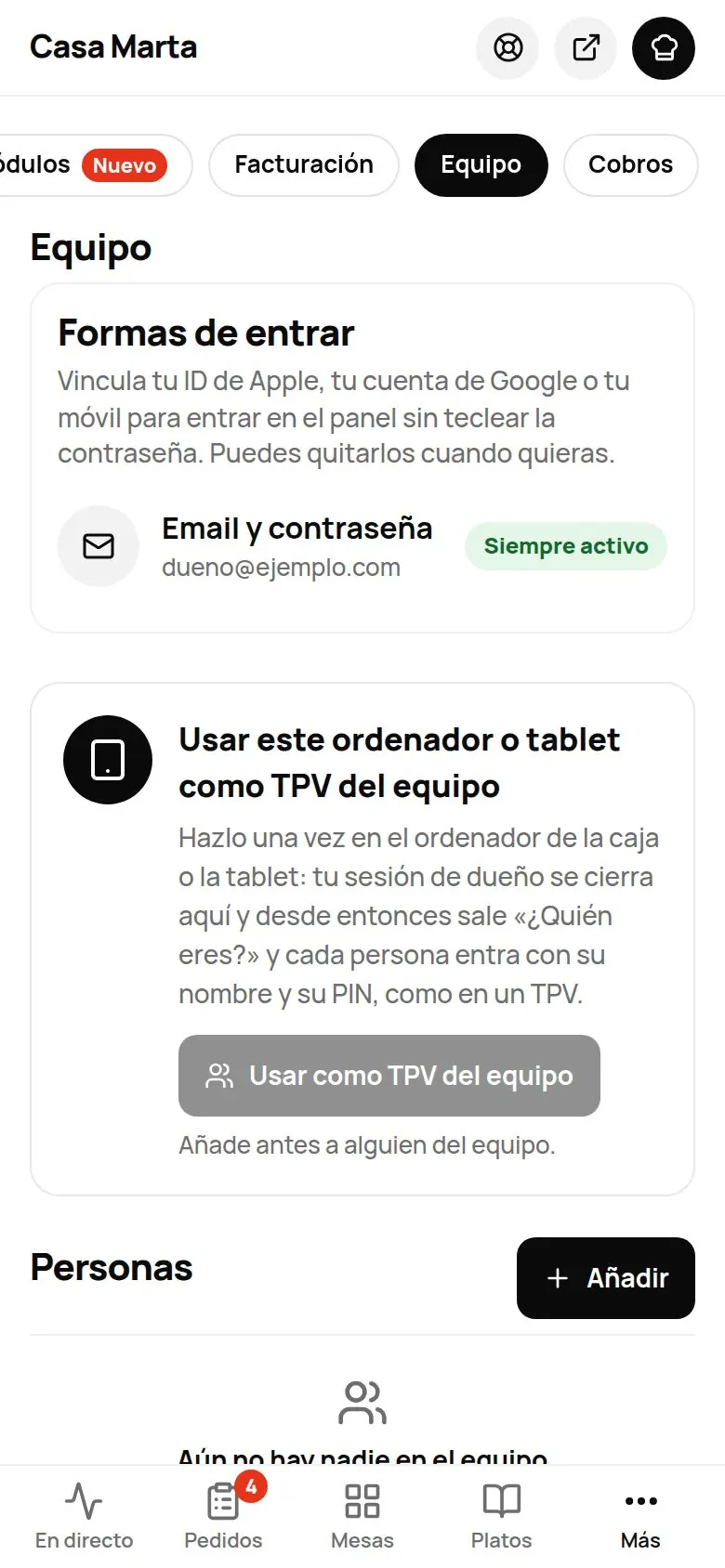
- On the venue's tablet or computer, sign in to the dashboard with your account and go to Settings › Team.
- Under «Use this computer or tablet as the team POS», tap Use as team POS. (You need to have added someone first.)
- Give it a name («Floor tablet», «Kitchen tablet») and choose the mode: Floor · with PIN or Kitchen mode (no PIN).
- Your owner session closes on that device. From now on it shows «Who are you?».
3. Day to day: «Who are you?»
- Each person taps their name and types their PIN. They sign in with their role.
- The header shows their name and role (for example, «Ana · Waiter»). To hand over to someone else, tap See you.
- If nobody touches the dashboard for 2 minutes, it goes back to «Who are you?» on its own.
- On a tablet in Kitchen mode no PIN is needed: it always stays on the kitchen screen. You can also set it up from «Who are you?» › ··· › Turn on Kitchen mode (with a manager's or the owner's PIN). Leaving that mode also needs one of those PINs.
My details: changing your name or PIN
Each person, by tapping their name, opens My details:
- Name › Change.
- Change my PIN: three steps (current PIN, new PIN and repeat it). You'll see «PIN changed. Use the new one from now on.»
- Switch person: goes back to «Who are you?».
Devices
In Settings › Team you see the team's devices, with their name and mode. If you lose a tablet or no longer use it, tap Revoke: whoever is signed in is signed out and nobody can sign in from it.
Protecting your owner account with your PIN
If you add yourself to the team with the Owner role and a PIN, you can turn on the PIN shield:
- Ask for a PIN after signing in with email and password: even if someone knows your password, they need your PIN.
- Servers and kitchen can only sign in on the venue's POS: their PIN doesn't work on any other device.
If you forget your PIN, tap «Forgot your PIN?»: we email you a 6-digit code (it expires in 15 minutes) and, with your password, you set a new one.
Ways to sign in to your account
In Settings › Team › Ways to sign in you can link your Apple, Google or mobile number to sign in to the dashboard without typing your password. Email and password always stay active. To remove one, tap Remove.
Common problems
| You see | What's happening | What to do |
|---|---|---|
| «Wrong PIN · N attempts left» | That isn't their PIN. | Ask them to type it again carefully. |
| «Too many attempts. Wait N min.» | 5 failed attempts in a row: the PIN locks for 5 minutes. | Wait, or have the owner tap Unlock PIN. |
| «Someone else on the team already uses that PIN» | The PIN is a duplicate. | Choose another. |
| «Your PIN only works on the venue's POS» | You've turned on the shield and they're signing in from another device. | Ask them to sign in from the venue's tablet. |
| «This device is no longer linked to the team.» | That device was revoked. | Tap Use as team POS again with your account. |
| «Your role doesn't allow this» | Their role doesn't have that permission. | Change their role if they should be able to do it. |