
Till and POS
Take payments, open the drawer and close the till.
Updated 26 October 2026
On this page
What it's for
The Food Please POS lives inside your panel. With it you take orders at the bar or at the table, take cash or card payments, open the drawer and close the till at the end of the day. It's included in your plan, along with orders.
- New order is the POS screen: you pick products, send them to the kitchen and take payment.
- Cash register is the day's cash drawer: opening float, putting cash in and taking it out, X report and Z closing.
- Tables is where you charge a bill that's already open (we explain it in Tables, calls and the bill).
Taking orders and payments with «New order»
Open it with the New order button in Orders, or with Add to the check from a table. If you're a waiter, you can also tap a free table in Tables: the POS opens with that table already set.
- At the top, tap Pick table and say where the order goes: a table, Bar or Takeaway.
- Tap a product to add one. If you press and hold it, you can choose its options or write a note («no onion»).
- Press Send to kitchen. The order appears in the kitchen and the table stays open for the next round.
- When they're ready to pay, press Charge (with the total) and choose the payment method.
Taking cash
- Choose Cash. Type what they hand you in Given or use the quick buttons: Exact, 5, 10, 20 and 50 €.
- The panel shows the Change. If it's not enough, you'll see «X short» and it won't let you charge.
- Confirm. You'll see «Paid · change X». If you have a cash drawer connected, it opens by itself.
If they pay the exact amount, use Exact cash: it charges the total without opening the sheet.
Taking card payments
- Choose Card. The panel tells you: «Charge X on the card terminal and confirm here once approved.»
- Take the payment on your usual card terminal.
- When the terminal says approved, press Paid by card.
The receipt
In Menu › Dishes › Venue settings › Printers you choose what happens with the receipt when you charge: Always, Ask or Never. It's set to «Ask» by default: when you charge, «Print receipt?» appears with Print and No.
The day's till
Go to Cash register. Here you see how much cash should be in the drawer and you close the day.
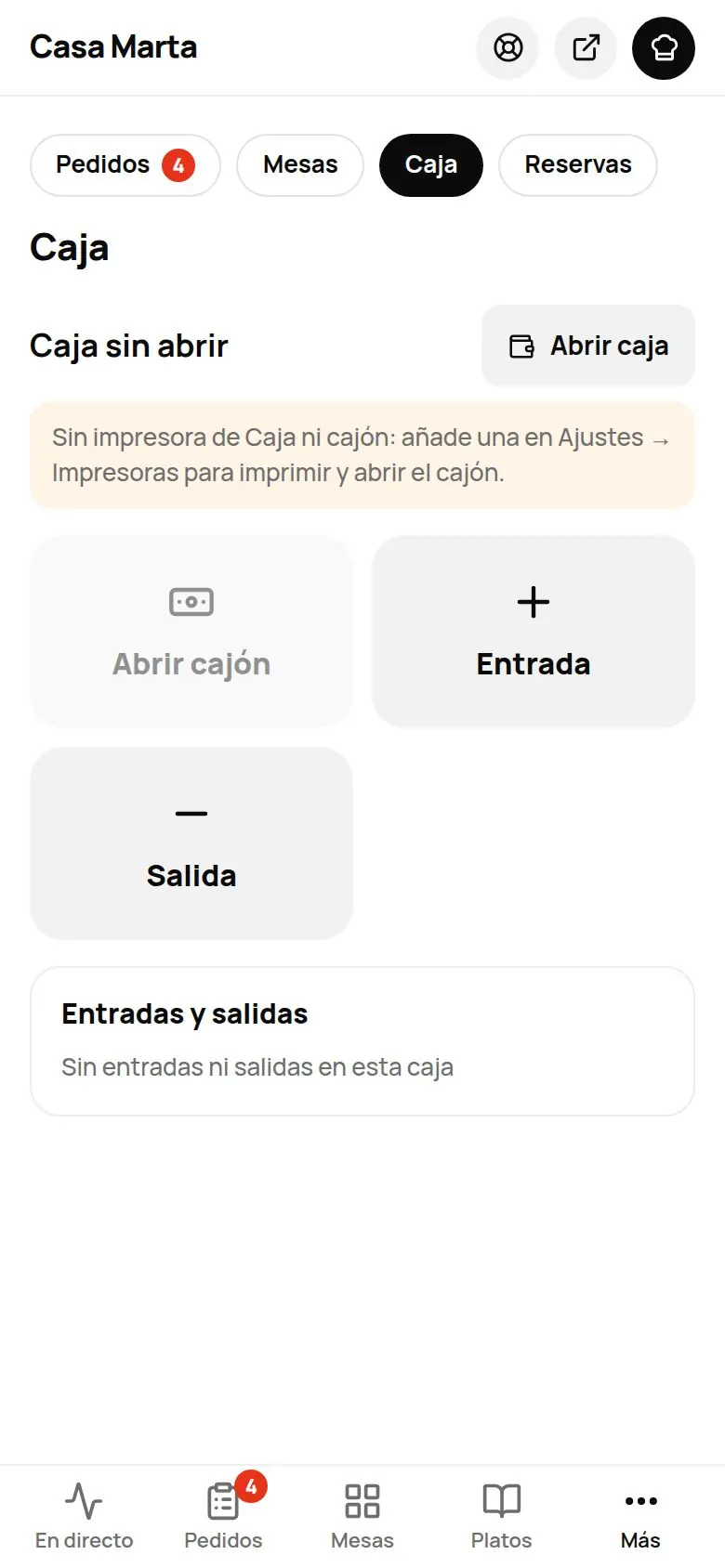
1. Opening the till
- Press Open till.
- Count the change you're leaving in the drawer and type it in Opening float.
- Press Open till. If you get it wrong, you can use Change float later.
If you forget, the till opens by itself (with a float of 0) the first time you put cash in or take cash out.
2. Putting cash in and taking cash out
Every time you put cash into or take cash out of the drawer that isn't a sale, record it. It isn't income or an expense in your accounts: it only keeps the drawer balanced when you close.
- Put cash in: you add cash to the drawer (change, more float…). It doesn't count as a sale.
- Take cash out: you remove cash from the drawer (paying a supplier, a purchase, taking it to the bank…).
- Press Put cash in or Take cash out.
- Enter the Amount and the Reason. There are shortcuts: Change, Extra float, Tips, Supplier refund (cash in) and Supplier, Purchase, Ice, Change to bank, Tips to staff (cash out).
- Press Save and open drawer. If you want a paper copy, leave Print slip on.
3. Checking how it's going: X report
Press Print X whenever you like during the day. It doesn't close anything. On screen you'll see:
- Sales in this till: cash, card, app and other, with the number of payments and the tips.
- Expected cash: float + cash taken + cash tips + cash put in by hand − cash taken out by hand.
4. Closing the till: Z closing
- Press Close till (Z).
- Count the cash in the drawer and type it in Cash counted. The panel tells you whether it's Balanced, X over or X short.
- If needed, explain the difference in Note (optional).
- Press Close till and print Z. You'll see «Till closed · Z no. N» and a new till starts.
Previous closings has your last 60 closings, with Reprint. Without a printer, the till closes just the same; you just don't get the paper copy.
The cash drawer
The cash drawer connects to the receipt printer (the usual RJ11 cable). For the panel to open it:
- Go to Menu › Dishes › Venue settings › Printers and open the till printer's settings.
- Tick Cash drawer connected.
From then on it opens by itself when you take cash and with every cash in or cash out. The manager and owner can also press Open drawer manually; it's logged as «Drawer opened», with who did it and when.
End of day
In Business › Report › End of day you decide when your working day ends:
- End-of-day time: set to 04:00 by default. Anything opened before that time counts towards the previous day. So a table opened at 01:00 counts towards yesterday.
- Automatically close unpaid tables at end of day: on by default. At the end-of-day time, any tables still open are closed as paid at the venue, with «Other» as the payment method. If you turn it off, they stay open until you charge or clear them.
Customer display
You can set up a tablet or monitor facing the customer so they can see what they're ordering, the total and the change.
- In New order, press Display › Customer display › Link a display. A 6-digit code appears (valid for 10 minutes and for one use only) along with a QR code.
- On the other tablet, open your menu address followed by /pantalla (for example, yourvenue.thefoodplease.com/pantalla), type the code and press Link.
- If both screens are on the same computer, use Open on the second screen or Open in a window.
What your customer sees: when there's no order, a carousel; while you're ordering, the lines as they're added, the total, «VAT included» and «To pay»; if they pay in cash, the amount given and the change; at the end, «Thank you!». The language (Spanish or English) comes from that tablet's language.
You can link up to 10 displays per venue. To remove one, press Unlink (manager or owner).
Using it on a computer, tablet or touchscreen POS
- The panel works in the browser. For day-to-day use at the bar we recommend Chrome.
- If you want it to open like an app, full screen, open it in Chrome and use the install option in the menu (⋮). On touchscreens the buttons are bigger.
- USB printer (in beta): if your receipt printer connects by USB to the computer itself, add it in Printers as Computer (USB) and press Print from this device (USB). It only prints while the panel is open on that computer, and only in Chrome or Edge.
No internet: the POS keeps going (beta)
If the wifi goes down, the POS can keep working on that device. The owner turns it on in Settings › Payments and orders › «Offline POS (beta)» (it comes with the POS module and is off by default).
What you can do offline (on the device where the panel is open):
- See the menu as it last loaded, open tables and take orders with New order (table, bar or takeaway).
- Take cash, or charge on your usual card terminal and log it with Paid by card. The built-in card reader and in-app payments need internet.
- Put cash in and take cash out of the till. Movements not sent yet show «Not sent» in the till.
At the top you'll see «Offline: saving on this device · 7 pending». When the connection is back, everything is sent by itself, in order and without repeating anything («Sending what was saved offline»). Don't close the screen until it's done.
Kitchen tickets. Cloud printers (Star, Epson and the bridge program) need internet: offline, the kitchen ticket doesn't print and you have to tell the kitchen; it prints once you're back online, marked «Offline · time». If your POS has the printer plugged in by USB and set up with Print from this device (USB), the ticket prints there straight away.
The customer's receipt. Offline no invoice is issued: if you have the USB printer, a «provisional receipt» prints saying it is not an invoice. The simplified invoice (with VERI\*FACTU) is issued by itself once you're back online, with the date of the payment.
If something changed in the meantime, the usual rules apply and we tell you:
- A dish sold out: it doesn't go on the check and we let you know.
- The table was paid on another device: cash taken on top goes into the till as «Offline: overcharged» so the count matches. Check it or give it back. If it was by card, refund it from the card terminal.
- The table is no longer on the floor plan: the order goes in as a bar ticket, with the table in the note.
Limits. Up to 300 operations or 12 hours not sent. After that, the POS won't keep going offline: connect it (a phone sharing data works). What's saved is only on that device: don't clear the browser data or switch devices until it's sent. Offline you also can't sign in with a new PIN: whoever was already in stays in.
Common problems
| You see this | What's happening | What to do |
|---|---|---|
| «Pick a table, the bar or takeaway» | The order has no destination. | Tap Pick table at the top and choose one. |
| «Nothing to charge» | The bill is at zero. | Add products or check you're on the right table. |
| «Something sold out: check the ticket.» | Someone marked a dish as sold out while you were ordering. | Remove it from the ticket or swap it for another. |
| «No Till printer or cash drawer…» | No printer has the Till station. | Add one in Printers\ and tick Till. |
| «No active printer has the cash drawer connected» | The drawer hasn't been ticked on the printer. | In the printer's settings, tick Cash drawer connected. |
| «Your role can't take orders» or «Your role doesn't allow this» | Your role doesn't have that permission. | Ask a manager or the owner (see Team and permissions). |
| «Type the cash counted» | You tried to close the Z without counting. | Count the drawer and type the total. |