
Dishes, categories and prices
Create, organise and highlight what you sell.
Updated 26 October 2026
On this page
What it's for
This is where you build your menu: dishes with their photo, price and description, categories (Starters, Mains…), options and extras (sizes, how the meat is cooked, types of milk…) and the set menu. It's all in Menu › Dishes.
At the top of the page there are two rows. The first shows the sister pages of the Menu section (Dishes · Sold out · Stock · QR). The second shows the parts of Dishes: Menu, Options, Set menu|menu/menu-del-dia, Categories & hours, Languages, Design and Venue settings.
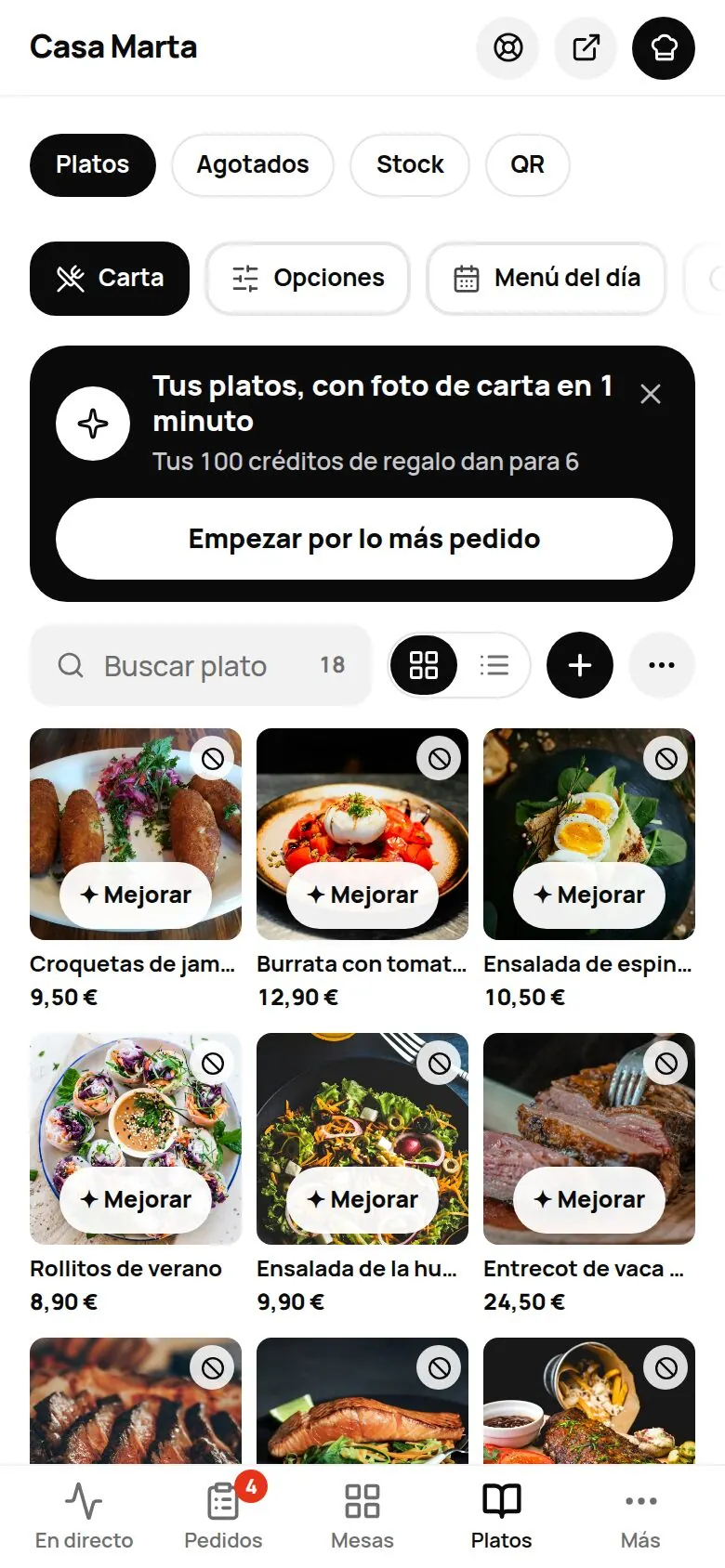
Adding a dish
- Go to Menu › Dishes and press Add dish (the + button). The «New dish» form opens.
- Enter the Name, a short Description and the Price.
- Choose the Category. If you don't choose one, the dish goes under «Other».
- Add a photo with Add photo (see Dish photos).
- Tick the Allergens it contains, or «No allergens» (see Allergens and diets).
- Press Save. You'll see «Saving…» and then «Saved».
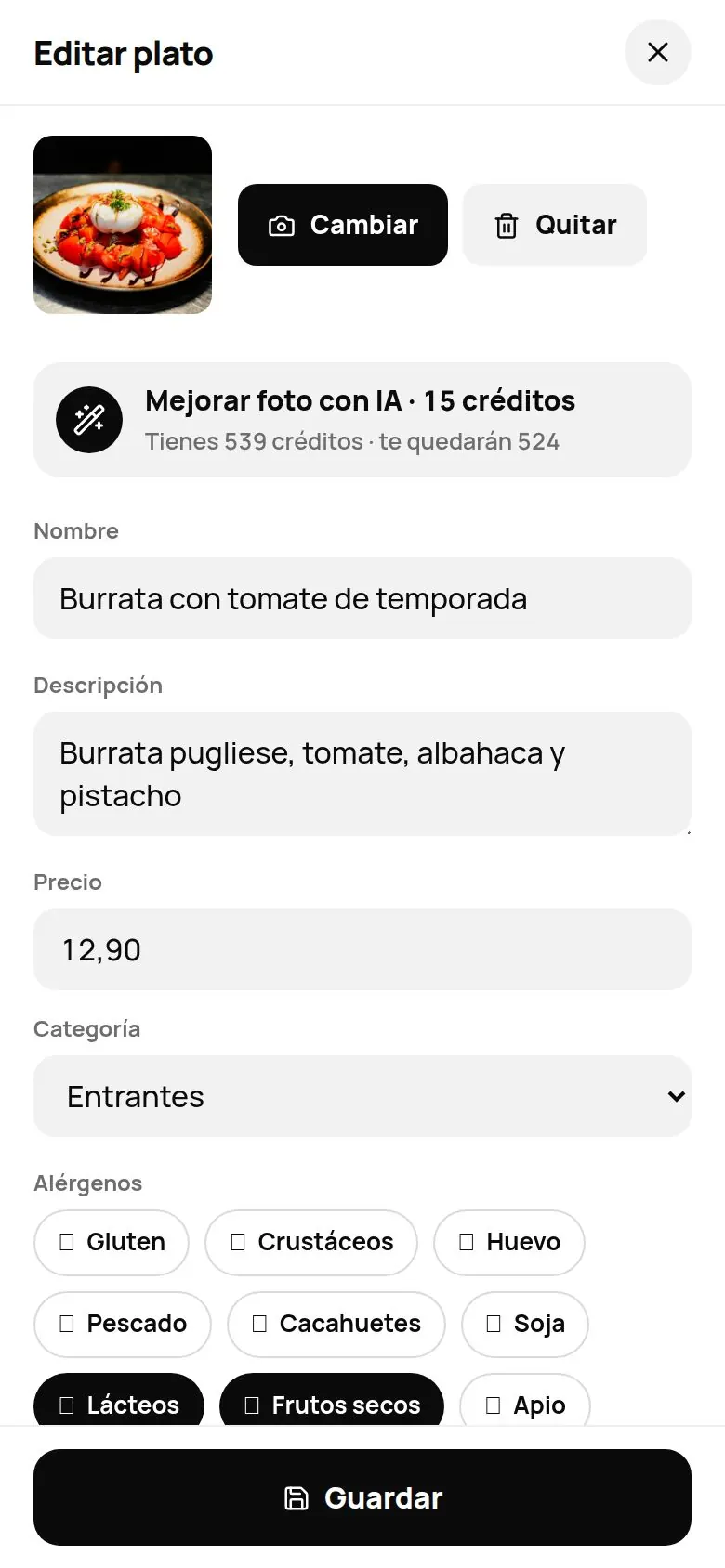
The form also has:
- Available: if you switch it off, the dish disappears from your menu and the panel shows «Hidden». Handy for seasonal dishes.
- Featured: «Shown with a star on your menu, and the AI waiter suggests it first.» Use it for your signature dishes (two or three, no more).
- Only with a confirmed table: for bottles and the priciest items. It can only be ordered from a phone the staff have already accepted at that table (or by paying when ordering); if a new phone orders it at an open table, it arrives as «To confirm». See Tables.
- Options and extras: the option groups the dish has (see below).
- In other languages: the name and description in each language (see Languages).
How to type the price
Type it the way you always do: «12.50», «12.5» or «12». You can include the euro sign too: «12.50 €». If the panel doesn't understand it, it tells you «Invalid price. Type it like this: 12.50» and doesn't save anything until you fix it.
Quick changes without opening the form
Tap the three dots ··· on a dish, or press and hold it for a moment. You'll see:
- Change price: type the new one and press Apply. It's saved straight away.
- Sold out until tomorrow and Available again (see Sold out).
- Edit: opens the form.
- Duplicate: creates «Name (copy)» just below. Ideal for variations of a dish.
- Delete dish: asks you first. Once saved, it can't be undone.
Saving your changes
While you have unsaved changes, a bar appears at the bottom with Discard and Save. If you try to leave the section, the panel warns you: «You have unsaved changes. If you leave now they will be lost.» and lets you choose Save, Leave without saving or Cancel.
Anything you do from the ··· menu (change price, duplicate, delete, mark sold out) saves itself, straight away.
Uploading your whole menu at once
If your menu is already written down, there's no need to enter dishes one by one.
- In Menu › Dishes, tap ··· (More options) › Import menu.
- Choose how:
- Text: paste your menu, one dish per line with the price at the end («Ham croquettes 9.50»). Lines without a price become categories. You can dictate it with your keyboard's microphone.
- PDF: upload your menu's PDF (up to 10 MB).
- My website: paste your website's address and press Read my website.
- Check the list: correct names, prices and categories, and remove anything you don't need.
- If you already had dishes, choose Add to my menu or Replace my menu.
- Tick the allergens box (you'll need to review them yourself afterwards) and press Add N dishes.
Made a mistake? For one minute you have the Undo button.
Categories: reorder, rename and delete
Go to Menu › Dishes › Categories & hours.
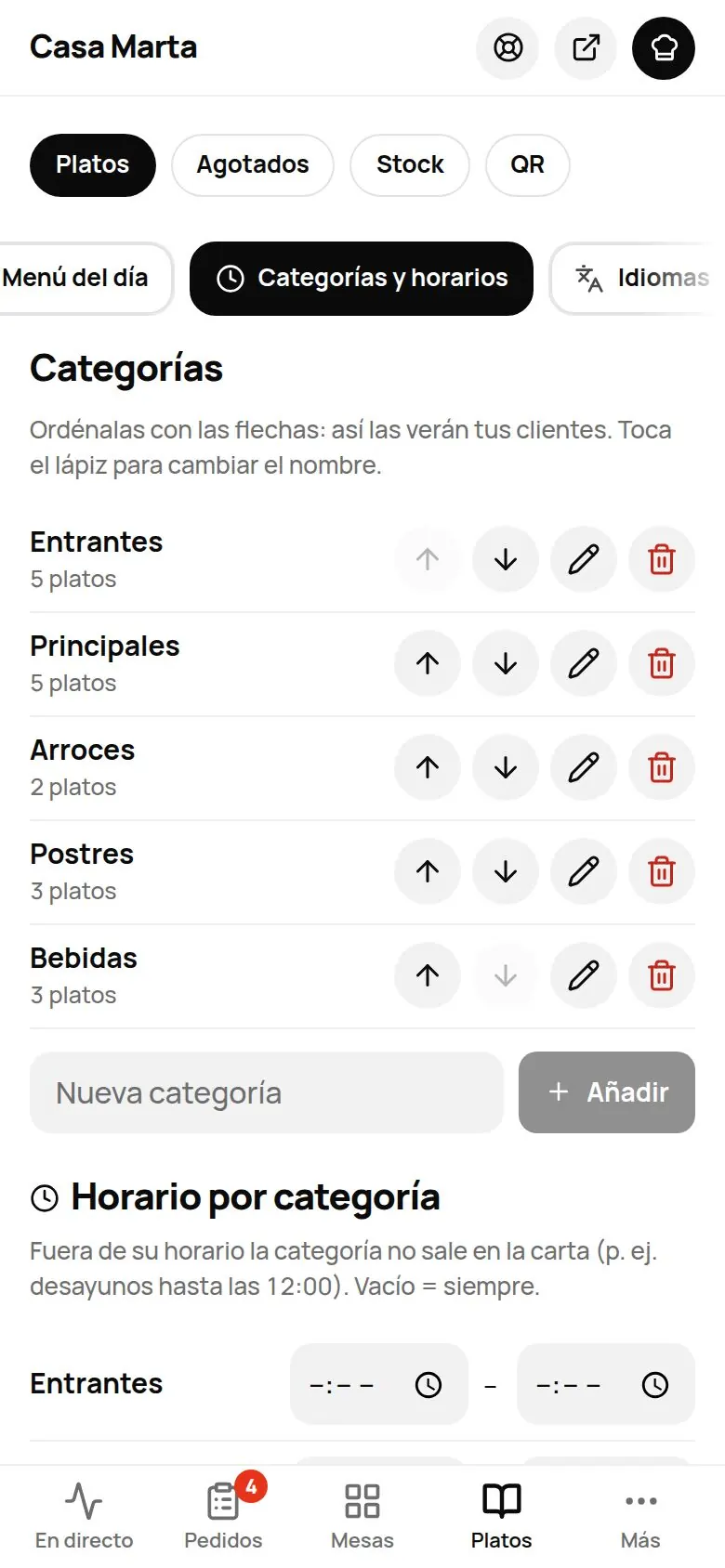
- Add: type in New category and press Add.
- Reorder: use the ↑ ↓ arrows. This is the order your guests will see, and the order they follow when they swipe from one dish to the next.
- Rename: tap the pencil. The name also changes on its dishes, its hours and its translations. 40 characters maximum.
- Delete: tap the bin. If it has dishes, you choose Move them to another category or Delete its N dishes too.
To reorder the dishes within each category: in Menu, ··· › Sort dishes, use the arrows, press Done and then Save.
Hours per category
Below the list of categories you'll find Hours per category. Outside its hours, the category doesn't appear on the menu. For example, «Breakfast» from 08:00 to 12:00. Set a start and end time; leave it empty = always. It uses your venue's local time.
If your floor plan has several areas (Terrace, Room, Bar…), each category lets you choose:
- Same in every area: one From – To for the whole venue.
- Different by area: one From – To per area. For example, coffee and tea on the Terrace from 08:00 to 18:00 and in Room 1 from 08:00 to 20:00. Leave an area empty if it's served all day there.
A customer ordering from a table in that area sees the dish with «Not available in the terrace area at this time» and can't order it. Staff can, from the POS: they get an «outside hours» warning and it's added anyway. Tap Save for it to apply.
Options and extras
Use them for sizes, toppings, how the meat is cooked, types of milk… You create the group once and use it on whichever dishes or categories you like. The guest chooses when ordering and the price is worked out automatically.
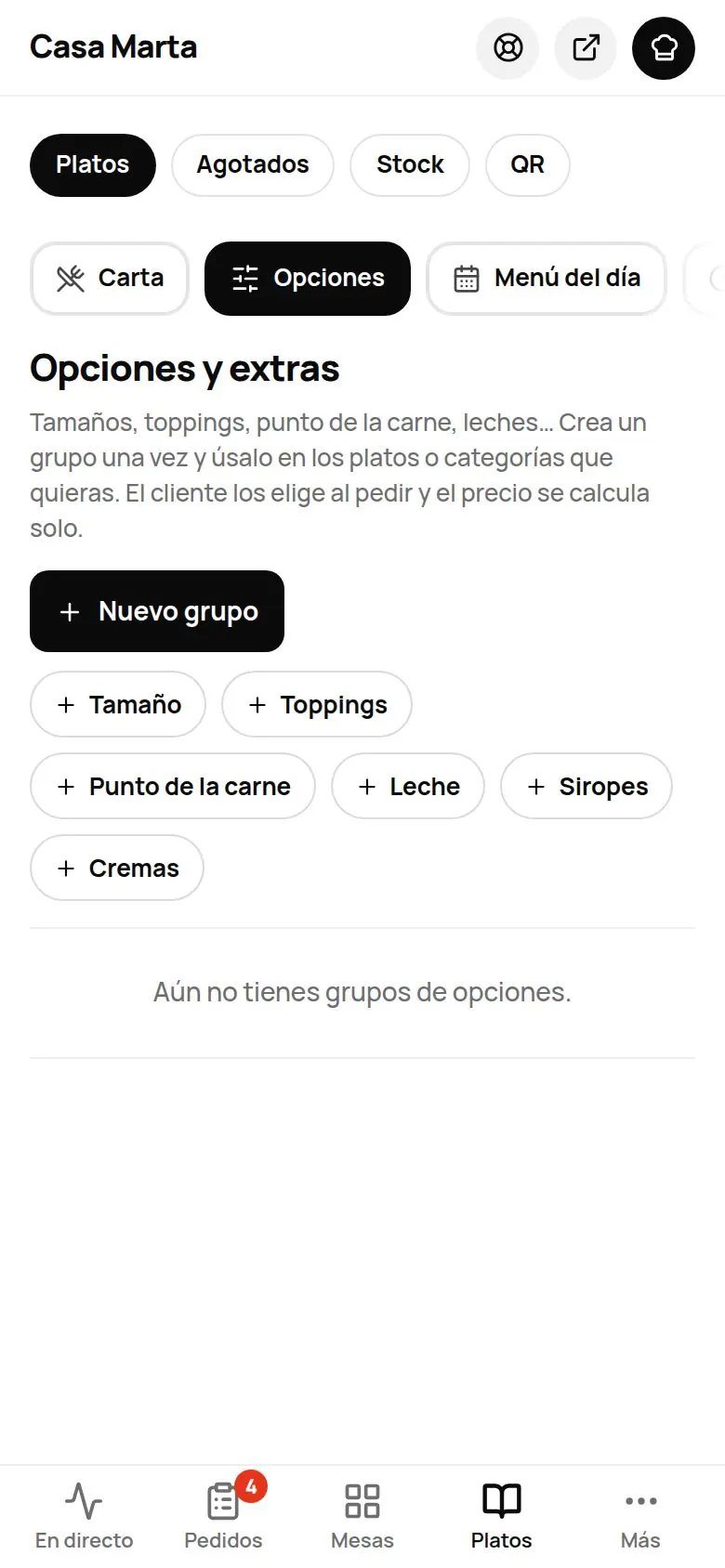
- Go to Menu › Dishes › Options and press New group, or use a template: Size, Toppings, Doneness, Milk, Syrups or Spreads.
- Enter the Group name and choose whether the guest can Pick one or Pick several, and whether it's Required.
- Add the options with Add option: name and surcharge (for example, «Extra cheese +1.20 €»). Mark one as Default if you like.
- For sizes or portions, tick Option price replaces the dish price and enter the full price of each size. The menu will show «from» the cheapest one.
- Choose where it applies: In these categories (all their dishes) or On these dishes.
- Press Done and then Save in the bar at the bottom.
If an option runs out (oat milk, say), tap Sold out today on that option: it saves straight away and the option stays sold out until the next morning (see Sold out).
Set menu and dish of the day
They appear at the top of your menu only on the days and at the times you choose.
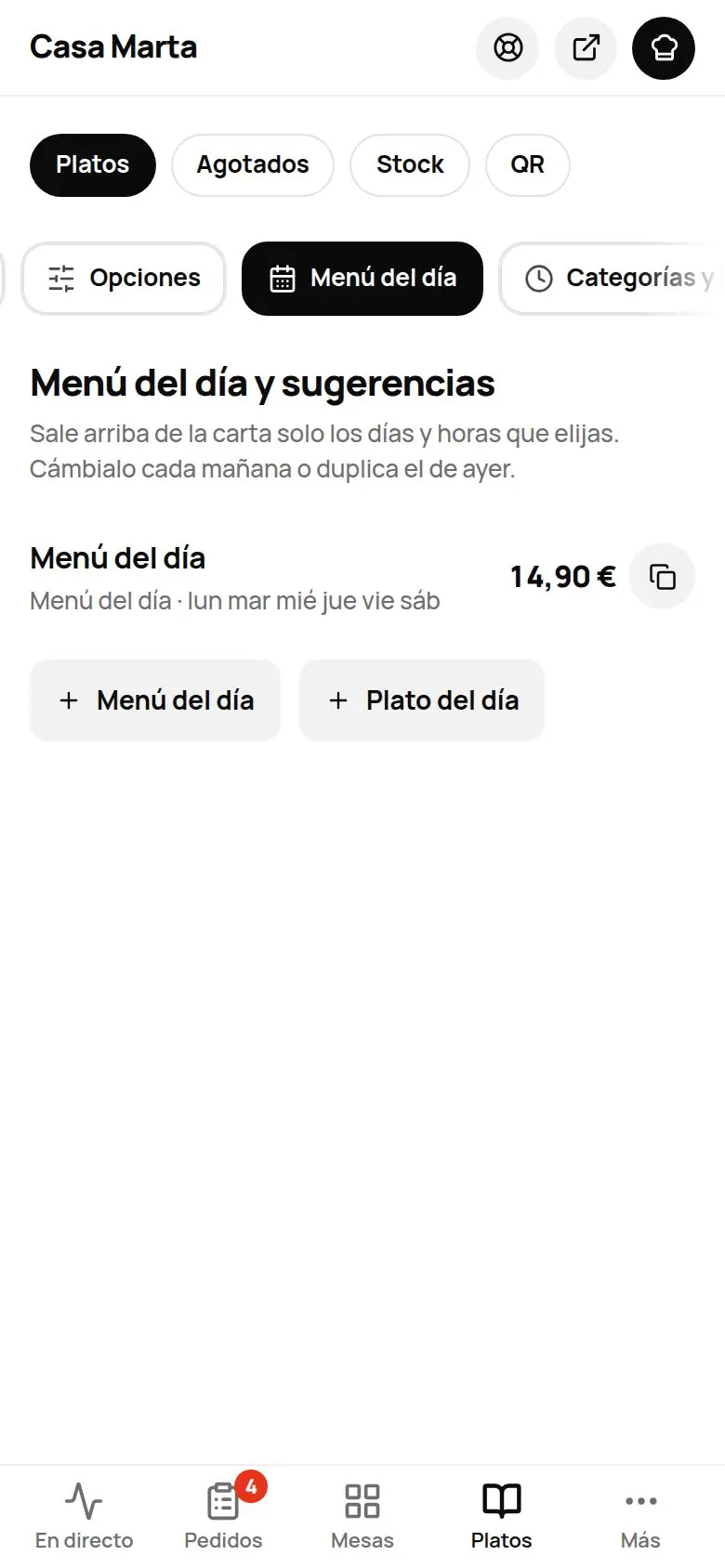
- Go to Menu › Dishes › Set menu|menu/menu-del-dia and press Set menu or Dish of the day.
- Enter the name and the price.
- For a set menu, enter the Starters, Mains and Dessert, one per line, and what it Includes (for example, «Bread, drink and dessert or coffee»).
- Choose the times (From – to; 13:00 to 16:30 by default) and the Days (Monday to Friday by default).
- Leave Active switched on and press Save.
For tomorrow, use the Duplicate icon, change the dishes and save. If you have ordering switched on, your guests can press Add to order.
Tips
- Short descriptions sell more: two or three ingredients that whet the appetite.
- Mark your 2 or 3 signature dishes as featured: they show with a ★ and, if you have the AI Waiter, it suggests them first.
- Check the allergens of every new dish before saving it.
- See in Your business which dishes get viewed a lot but ordered little: change their photo, price or description.
Common problems
| You see this | What's happening | What to do |
|---|---|---|
| «Check the price of “X”: nothing was saved.» | A price is typed incorrectly. | That dish opens: correct the price (for example, 12.50) and save. |
| «Could not save. Check your connection and try again.» | The internet connection dropped. | Check your connection and press Save again. |
| «No dishes with a price found…» | When importing, the lines don't have a price at the end. | Put the price at the end of each line: «Croquettes 9.50». |
| «This menu is an image…» | The PDF or website has no text. | Paste or dictate the text in the Text tab. |
| «You already have a category with that name.» | The name is already in use. | Use a different name. |
| «Save the dish before marking it sold out» | The dish is new and hasn't been saved. | Press Save and mark it again. |