
Kitchen screen
What's coming in, big and in order.
Updated 26 October 2026
On this page
What it's for
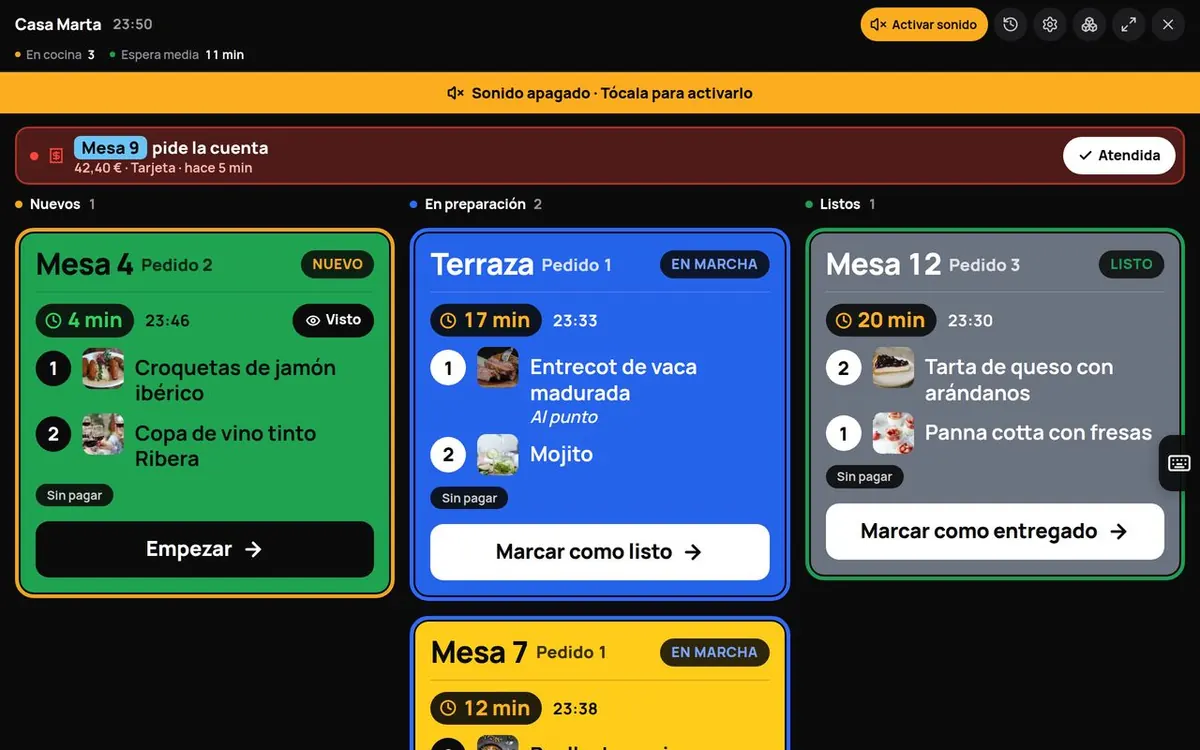
The kitchen screen shows orders in large type, in columns and with sound, for a tablet in the kitchen or at the bar (or any screen with a browser). The screen stays on while it's open.
Opening it
- The quick way: in the panel, press the black Kitchen button (at the top on a phone, at the top of the sidebar on a computer), or the chef's hat in Orders.
- A fixed tablet in the kitchen, without your account signed in: add your team in Team and put the tablet in Kitchen mode. It then stays on the kitchen screen without asking for a PIN. To leave Kitchen mode you need a manager's or the owner's PIN.
What it shows
- At the top: your venue's name, the time and a few figures («In the kitchen», «Avg. wait», «Open tables»; plus today's sales if your role can see them).
- Three columns: New, Preparing and Ready. When there's nothing pending, «All served».
- Each card: the table with its colour, «Order 2» if it's their second round, how long it's been waiting, the dishes with their options and notes, and whether it's paid.
- Pickup orders show their time («Pickup 13:40»), the name and their large code (A12); delivery orders show the address.
Marking what goes out
- When you start an order, tap Start. It moves to «Preparing».
- When it's done, Mark as ready. It moves to «Ready» and the guest sees «Ready!».
- When it goes out to the table, Mark as served.
If you make a mistake, «Served today» has Back to kitchen, and for 10 minutes, Undo last.
The time on each card turns green under 10 minutes, amber from 10 to 20 and red from 20 onwards.
Sound
- It sounds with every new order and repeats every 15 seconds until someone taps the ticket (or presses Seen or Start).
- An unanswered call from a table turns red and sounds again after 3 minutes.
- Browsers won't play any sound until you've tapped the screen once. If you see the «Sound off · Tap here to turn it on» strip or the Turn on sound pill, tap it.
- Too noisy for a moment? Mute for 5 min. You'll see the countdown; tap it to turn the sound back on.
Kitchen and bar separately
If the bar makes the drinks and the kitchen the food, each screen can show only its own items:
- Go to Menu › Dishes › Venue settings, «Payments and orders» block, and open Kitchen and bar.
- Set each category to Kitchen or Bar (for example, «Drinks» and «Coffee» to Bar) and press Save.
- On each kitchen screen, at the top, choose All, Kitchen or Bar. That tablet remembers it.
In «All», bar items carry the BAR label. Each station marks only its own items.
Calls from tables
Calls also appear on the kitchen screen (the Kitchen role doesn't see them): «Table 4 asks for the bill · 38.50 € · Card · 2 min ago», «calls the waiter» or «asks for a simplified invoice», with Charge and Done. When a table pays through the app, a green «Paid in the app» band appears.
Kitchen settings (the cog)
- Test sound: check you can hear it.
- This screen shows: All, Kitchen or Bar.
- Connection: «Connected · last signal N s ago».
- Tablet always ready: «iPad: Guided Access · Android: Pin the app, screen never turns off, always charging».
Ticket printer
If you prefer paper, you can connect a receipt printer that prints every order automatically. It only needs internet, no computer.
- Go to Menu › Dishes › Venue settings › Printers and press Add printer.
- Choose the brand: Star (CloudPRNT; for example, mC-Print or TSP100IV) or Epson (Server Direct Print; for example, TM-m30 or TM-T88). There's also Computer (USB), in beta.
- Choose what it prints: Kitchen, Bar or Till.
- Press Create and show the URL and Copy. Keep it safe: it's only shown at that moment.
- Paste it into the printer's settings following the Step by step guide the panel shows you.
- When the status says Connected, press Print test.
Statuses: «Connected», «Offline · last contact X ago», «Not connected yet» or «Disabled». Every ticket in the kitchen and in Orders has an icon to reprint it. Printer from a different brand? Write to us.
Common problems
| What happens | Why | What to do |
|---|---|---|
| «The browser paused the sound · Tap here to turn it on» | The browser blocks sound until you tap the screen. | Tap the strip. |
| «Offline» in red | The tablet has lost its internet connection. | Check the Wi-Fi. Meanwhile, no new orders reach that screen. |
| The tablet switches itself off | Power-saving settings. | Follow the «Tablet always ready» guide and keep it charging. |
| «No active printer for this station» | No printer prints that station. | Tick the station on a printer in Printers\. |
| Leaving Kitchen mode asks for a PIN | That's normal: it protects the tablet. | Enter a manager's or the owner's PIN. |