
Dish photos and AI photo
A menu-ready photo in a minute, without changing the dish.
Updated 26 October 2026
On this page
What it's for
If guests can see it, they order it. A dish with a photo is easier to understand and gets chosen sooner. You can upload your own photos from your phone and, if you like, improve them with AI: better light, a better background and better framing, without changing the dish.
Uploading a dish photo
- In Menu › Dishes, open the dish.
- Tap Add photo and choose one from your gallery or take one with the camera.
- Press Save.
The photo is automatically cropped to portrait (4:5) and scaled down so your menu loads quickly. To replace it, Change; to remove it, Remove.
On your menu, each photo is served at the right size for each screen. While it loads, the space shows the photo's colour (or a soft grey) instead of a black block, and the photo fades in.
Uploading lots of photos at once
- In Menu › Dishes, tap ··· (More options) › Upload photos and choose several.
- They go into a tray, «Unassigned».
- Tap a photo and then the dish it belongs to (or choose it below, in «Choose a dish without photo…»).
- Repeat with the rest and press Save.
If a photo fails to upload, tap Retry.
AI photo
Turns a photo taken on your phone into a menu-ready photo. It costs 15 credits and gives you up to 3 versions to choose from. You're only charged if it works.
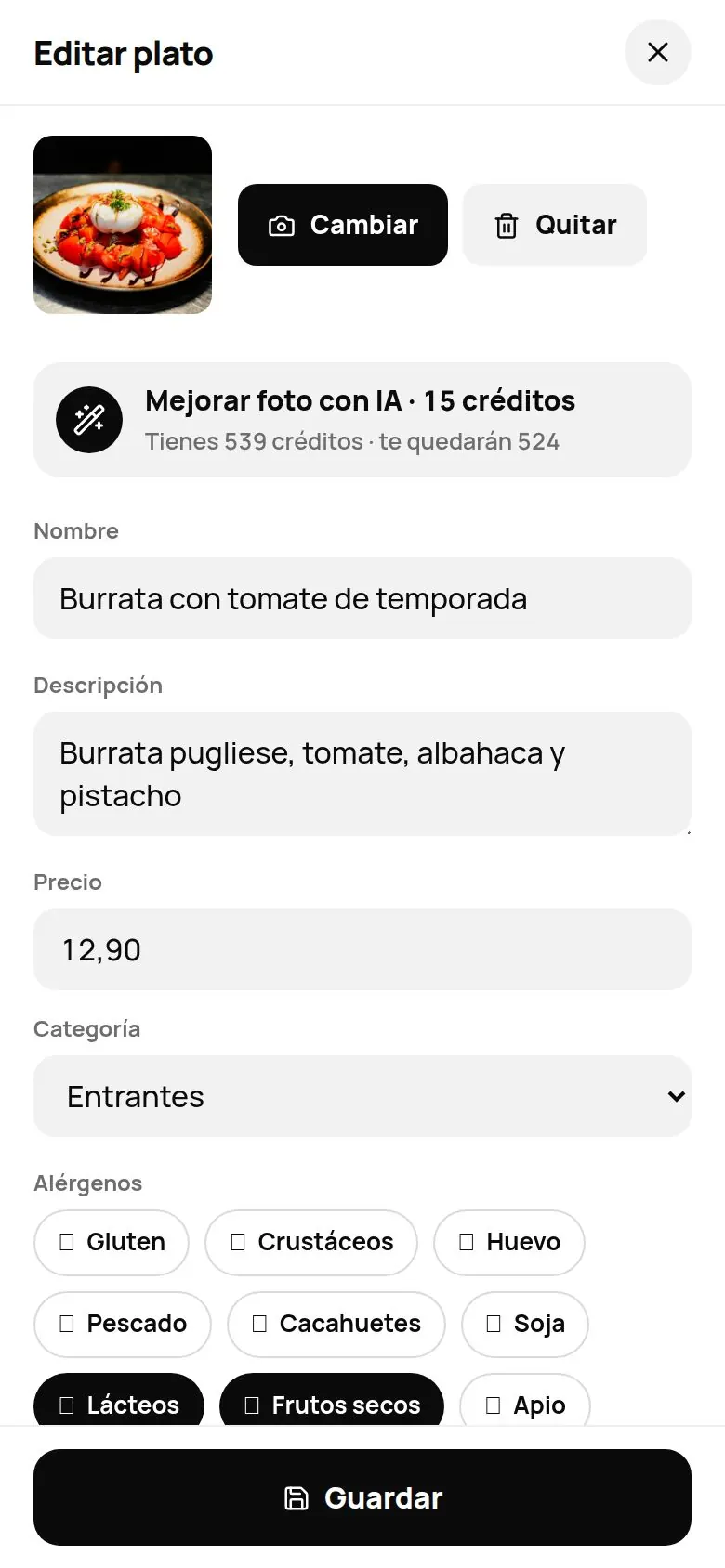
- Open the dish in Menu › Dishes (you can also get there from AI › AI photos, which takes you to Dishes with the hint «Open a dish and tap «AI photo».»). You'll see Improve photo with AI · 15 credits (if it already has a photo) or Create photo with AI · 15 credits (if not). Below it, how many credits you have and how many you'll have left.
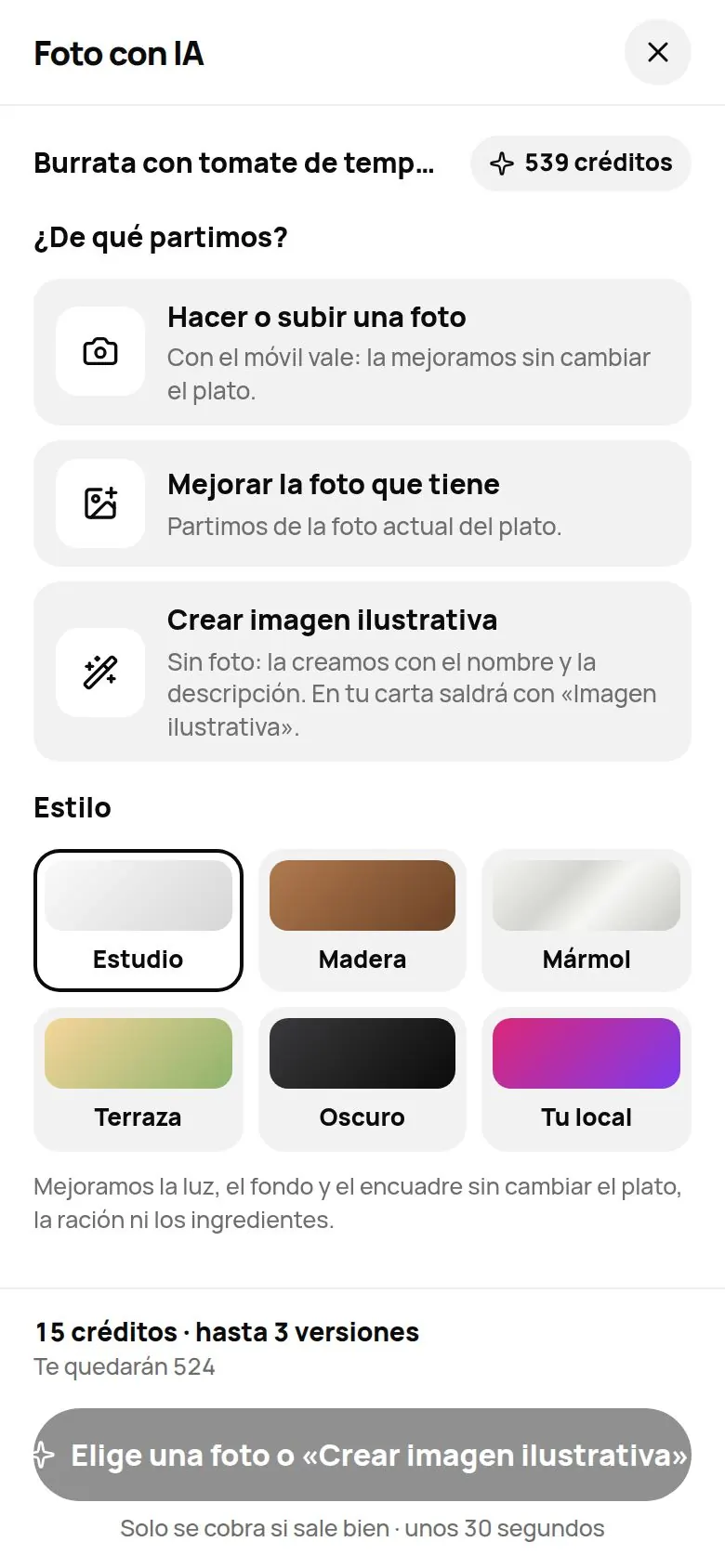
- Choose your starting point («What do we start from?»):
- Take or upload a photo: a phone photo is fine.
- Improve its current photo: starts from the existing photo.
- Create an illustrative image: if you don't have a photo, we create one from the dish's name and description. On your menu it will carry the label «Illustrative image».
- Choose a style: Studio, Wood, Marble, Terrace, Dark or Your place (see below).
- Press Create photo · [style]. It takes 30 to 60 seconds. Don't close the screen in the meantime.
- Compare the before and after by dragging the slider. You get 2 versions; if you want a third, press Another version · free.
- Press Use this on my menu. You'll see «Photo saved to your dish». If you'd rather keep yours, press Keep mine.
When you finish, the panel suggests the next dish («Shall we keep going?»): dishes without a photo first. You can carry on or press Done.
In Menu › Dishes you may also see a card to start with your most-ordered dishes: «Your dishes, with a menu-ready photo in 1 minute», with Start with the best sellers.
From the app, with your phone's camera
In The Food Please app it's even quicker: open the dish and tap ✦ Improve photo with AI · 15 credits (or ✦ Create photo with AI · 15 credits if it doesn't have a photo yet). Choose Take a photo and take it with the camera there and then, in natural light; or Choose from gallery. Then the style and the usual steps. In the menu list, each dish's Improve pill (or Add photo) takes you to the same place.
When the 15 credits are charged
- They're deducted when the photo is created.
- If no version comes out, they go back to your balance automatically. In your activity you'll see «AI photo · [dish] −15» and «Refund · [dish] +15».
- Choosing a version, asking for another (up to 3) or keeping yours costs nothing extra. If in the end you keep yours, those 15 have already been spent.
What changes and what doesn't
The AI improves the light, background and framing without changing the dish, the portion or the ingredients. Always check the result before using it: your menu has to show what you really serve.
The «Your place» style
With the «Your place» style, the photo copies the light and atmosphere of your venue; the dish doesn't change. It needs photos of your venue:
- In the AI photo sheet, when you choose «Your place», or in Menu › Dishes › Design, look for «Photos of your place for the Your place style».
- Press Add photo and upload up to 3 photos of your dining room, your tables or your tableware («1 of 3»…).
- You'll see «Done: you can now use «Your place».»
Until you have at least one, the style appears disabled with «Upload 1–3 photos of your place» and the Upload photos button. To remove one, Remove photo.
Tips for taking good photos with your phone
- Daylight, near a window. No flash.
- A clean plate, centred, with a little space around it.
- From above for pizzas and flat dishes; from slightly to the side for burgers, desserts and drinks.
- One photo per dish, the most appetising one. Better one good photo than three average ones.
Common problems
| You see this | What's happening | What to do |
|---|---|---|
| «The photo could not be uploaded. Check your connection and retry.» | The upload was interrupted. | Check your connection and tap Retry. |
| «You don't have enough credits for this photo.» | You have fewer than 15 credits. | Tap Buy credits (see Top up). |
| «Couldn't create the photo. You haven't been charged: please try again.» | The photo didn't come out. | Try again; try another photo or more light. |
| «I couldn't read the current photo: upload it from your phone.» | The dish's existing photo couldn't be used. | Choose «Take or upload a photo» and upload it again. |
| «That photo is larger than 8 MB…» | The photo is too big. | Take it with your phone's camera or choose a lighter one. You haven't been charged. |
| «That photo can't be read…» | The format can't be read (this happens with some iPhone photos). | Use a JPG or PNG photo. On iPhone: Settings › Camera › Formats › «Most Compatible». |
| «For an illustrative image, write the dish name first.» | The dish has no name. | Enter the name and try again. |
| «We're enabling it; you won't be charged anything» | AI photo isn't active on your account yet. | Wait: you won't be charged anything until it works. |