
Tables, calls and the bill
Every table, with its rounds and its calls.
Updated 26 October 2026
On this page
What it's for
Each table opens its bill with the first order and keeps it open, round after round, until you charge it. In Tables you can see at a glance which tables are free, which are occupied and which are asking for the bill, and you charge from there.
The Tables view
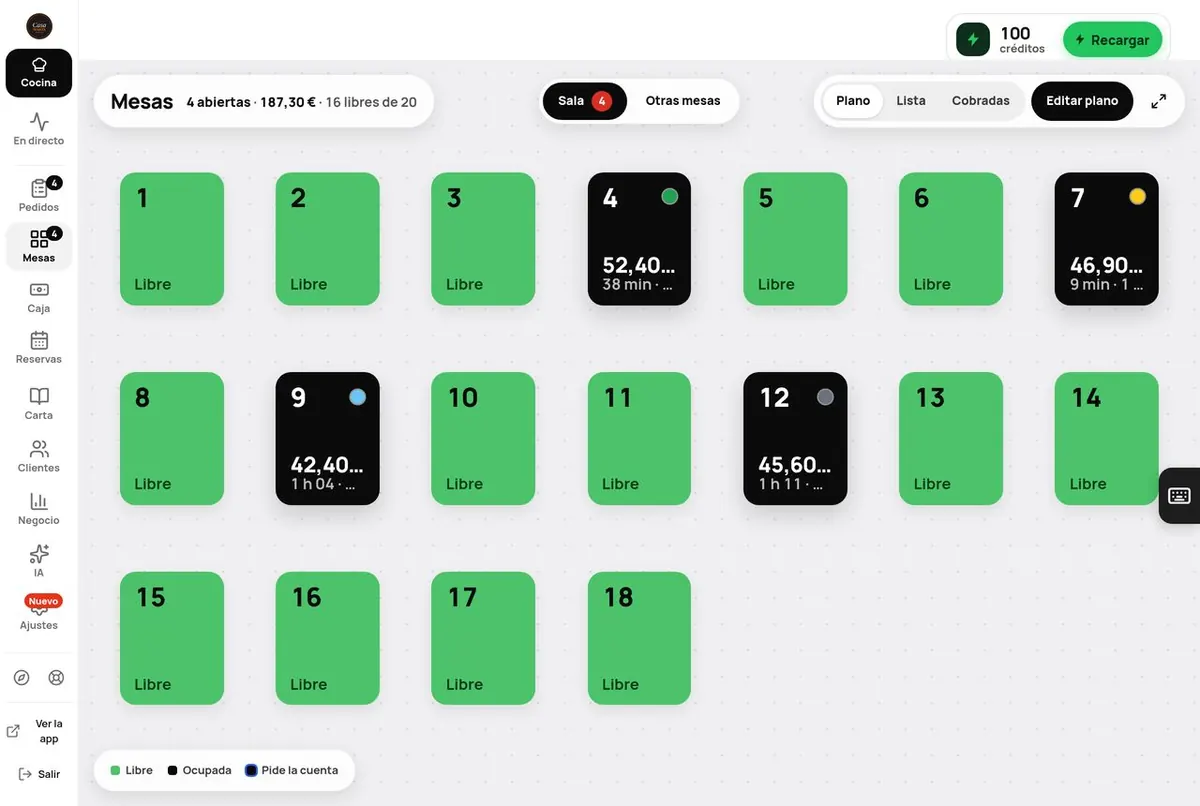
- At the top: «N open · amount · N free of M».
- Three views: Floor plan (the default), List and Paid (bills paid today, for manager and owner). You can switch it to full screen.
- Colours: Free (green), Occupied (black, with the amount and the time), Asked for the bill (with the «Bill» label). If you have Bookings, also Reserved and Seated.
Opening a table
Tap an occupied table to see its bill: «Bill open since 13:05 · 2 orders · all charged together», what's been ordered and these buttons:
- Add to the check: opens the POS to add something to that table (see Till and POS).
- Charge: opens the payment sheet (below).
- Cash / Card: quick charge for everything.
- Move to another table: moves the bill to another free table.
- Clear: closes the table as paid at the venue (manager and owner). It asks you first.
When you tap a free table: if you're a waiter, the POS opens straight away to take an order for that table; if you're a manager or owner, you'll see New order at this table and its QR code.
Opening the table when you seat guests
So nobody can order from home with a photo of the QR, the first order of each phone at each table arrives as To confirm. Once the table is open, those orders are no longer held back by limits (large first order, several at once) and you accept them with one tap, also from the phone notification; once you accept a phone, it orders straight through for the rest of the visit. A new phone is always confirmed, even at an open table: a photo of the QR never reaches the kitchen on its own.
- On the floor plan, tap the round door button in the corner of a free table. Or tap the table and press Open table. One tap.
- The table becomes Open (green with a black border) and shows in «Open tabs».
- It also opens by itself when you Seat a booking there and as soon as you accept its first order.
- It closes when charged or released, with Close table or by itself after 3 h without orders (change it in Order security). From then on, a photo of its QR no longer works.
Charging a table
- Press Charge. You'll see the total, what's been paid and what's still due.
- Under «What to charge», choose: All, Split (between how many people; it shows «Each part: X»), By item or Amount.
- Tip: No tip, 5 %, 10 %, 15 % or Other.
- Payment method: Cash (with the amount tendered and the change), Card or Other.
- Press the «Charge 38.50 € · cash» button (with your amount). You'll see «Table 4 paid and closed».
If you charge in parts, the table stays open with what's left. Under «Payments» you can see each payment and who took it.
- Print bill preview: sends it to the Till printer.
- Void check: only if it has no payments yet. «Void the check? Its orders won't count as sales.»
The sale counts when you charge, and it's recorded on the day and time the bill was opened. Tables still open at the end of the day can be closed automatically at the end-of-day time (see End of day).
«Call the waiter» and «Ask for the bill»
When guests come in through their table's QR code, the menu has two buttons:
- Call the waiter: you get a «Calling the waiter» alert in Orders and in the kitchen. The guest sees «Done. Someone's coming.»
- Ask for the bill: the guest chooses Pay from your phone (if you have Online payments) or Have the waiter come, and says how they'll pay: Card or Cash. You get «Table 4 asks for the bill · 38.50 € · Card», with Charge and Done.
Unanswered calls turn red and sound again after 3 minutes. If you don't want these buttons, turn them off in Menu › Dishes › Venue settings › More options: «“Call the waiter” and “Ask for the bill” buttons on the menu (with table QR)».
The bill on the guest's phone
With pay-at-table on, the guest sees a bar at the bottom: «Table 12 · Due 38.50 € · View bill ›». There they see everything the table has ordered, with the note «Pre-bill – not a valid invoice», and can pay it all, split it, pay just their share or another amount. We explain it in Table and online payments.
Drawing your dining room: the floor plan
The manager and owner can draw the dining room as it really is, so the Tables floor plan (and the Bookings one) looks like your venue.
- In Tables, press Edit floor plan.
- Drag the tables into place. Tap one to change its shape (Square, Round or Long), its seats or its display name.
- Add a Bar, Wall or Text. With Draw you can do it with your finger: a circle or a square is a table, a long rectangle is a bar, a line is a wall and scribbling over something deletes it.
- If you have a terrace or several rooms, create more Rooms (up to 12).
- It saves by itself («Saved»); there's also Save floor plan.
Each table's number is the one on its QR code: it doesn't change, so its QR keeps working. If you want a different name, change the «Display name». Occupied tables can't be deleted.
Common problems
| You see this | What's happening | What to do |
|---|---|---|
| «It can't be voided: it already has payments.» | The bill already has a payment. | Charge it or clear it (manager or owner). |
| «That check was already closed» | Someone else closed it first. | Nothing: it's already paid. Look for it in «Paid». |
| «That table was just taken. Pick another.» | When moving tables, the destination already has a bill. | Choose a free table. |
| You can't see «Edit floor plan» | Your role can't do it, or the POS isn't turned on. | Ask the manager or the owner. |
| The guest can't see «Call the waiter» | They didn't come in through their table's QR, or the buttons are off. | Ask them to scan the table's QR; check the setting. |