
Create your waiter
Give it a name, a face and a personality. It's your venue's character on the menu.
Updated 26 October 2026
On this page
What it's for
Your AI Waiter isn't the same as another venue's: you create it. You choose its name, whether it introduces itself as a waitress, a waiter or a gender-neutral host, how it talks, what face it has and what it says when it greets guests. Your guests see it that way on the menu, and the AI answers with that personality.
Its starting name
- Venues that signed up from 18 October 2026: they start with a name already set, different for each venue (we choose it based on your country, your area and your cuisine; a pizzeria, for example, gets an Italian name). On its page you'll see «We've called it [name]. Change it if you like.»
- Older venues: they keep «Laura» until you change it. You'll see «It's called Laura for now. Change it whenever you like.»
Where to create it
- Go to AI › AI waiter.
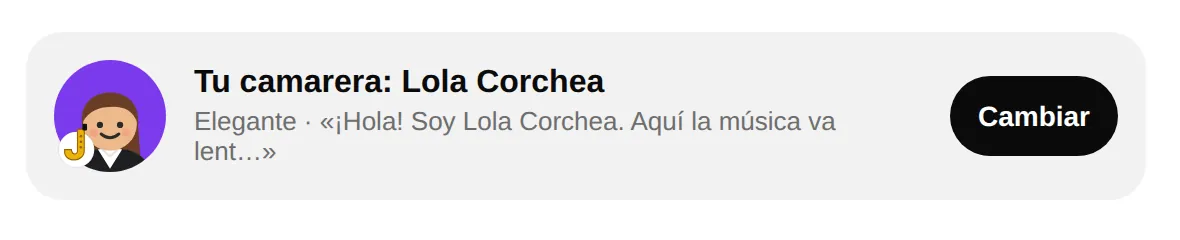
- Find the «Your waiter: [name]» card (or «Your host»), with its face, its way of speaking and the start of its greeting. Without the module, it's at the top; with the module, under «Personality».
- Tap Change (at an older venue that has never touched it, Create your waiter). «Create your waiter» opens full screen.
«Create your waiter», step by step
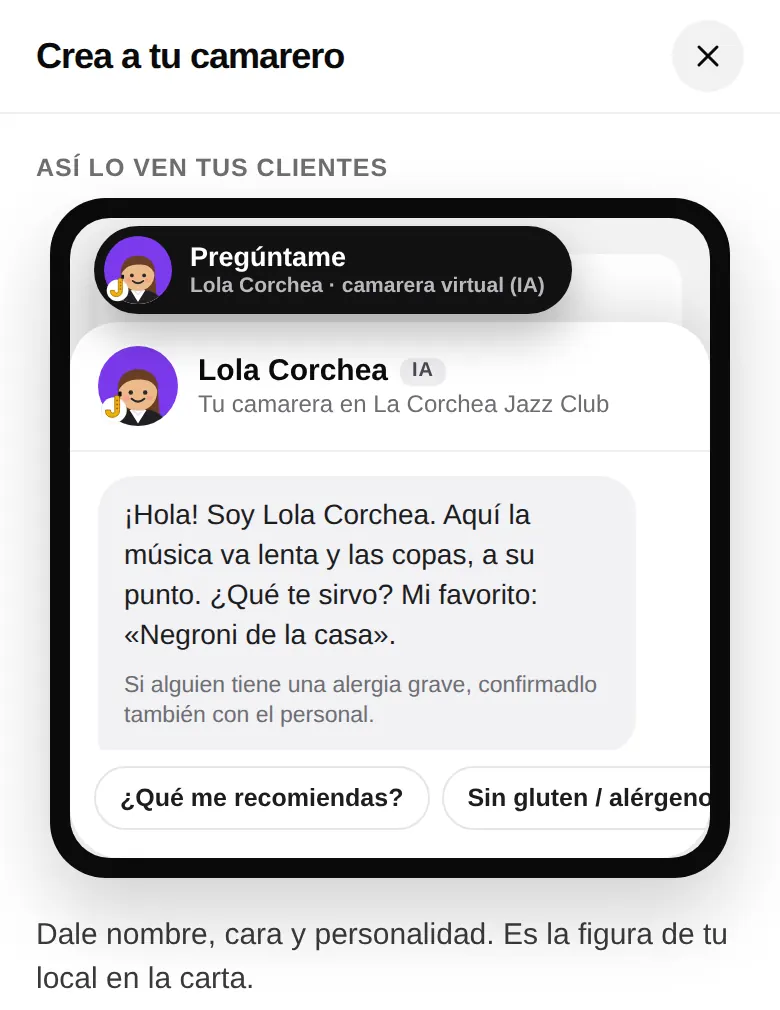
At the top you always have «What your guests see»: the menu button and the chat with its greeting, which update live as you choose.
- What kind of place is it? Tap yours (restaurant, tapas bar, tavern, coffee shop, pizzeria, cocktail bar, beach bar… there are 22) and we'll suggest a complete character: name, look, greeting and backstory. With Another idea you see the next one.
- Invent one with AI (if it's available on your account): creates a new character for your venue. You can ask for 5 a day; you'll see «N left today».
- Name: type it (2 to 20 characters) or tap the dice for another one. As you type, we warn you if it isn't allowed: insults, famous people, well-known characters or brands, links or instructions for the AI. If there's an alternative, you'll see Use «…».
- Introduces itself as: Waitress, Waiter or a gender-neutral host. This changes the menu button («virtual waiter (AI)» or, for the neutral option, «virtual host (AI)») and the greeting.
- Way of speaking: Friendly (casual), Formal (polite), Fun, Elegant, Cheeky, Old-school, Poetic, Laid-back or Calm. Below, «Sounds like» shows you a sample sentence.
- Look: choose the style (Character, Emoji or Initial) and, for the character, the skin, the hair and its colour, the expression, the background and an accessory (hat, chef's hat, beret…).
- Greeting (up to 120 characters): «Said when the chat opens.» It appears exactly as written in the language you write it in; guests who view the menu in another language get the standard greeting, translated.
- Backstory (up to 300 characters): «Your guests don't see it: the AI uses it to speak like your character.»
- Favourite dish: «Recommended with charm when it fits.» Your featured dishes (★) come first in the list. In the preview greeting you'll see «My favourite: «…».»
- Tap Save. You'll see «Done! [name] is on your menu.» (without the module: «Saved! Turn on the AI waiter so [name] can serve on your menu.»).
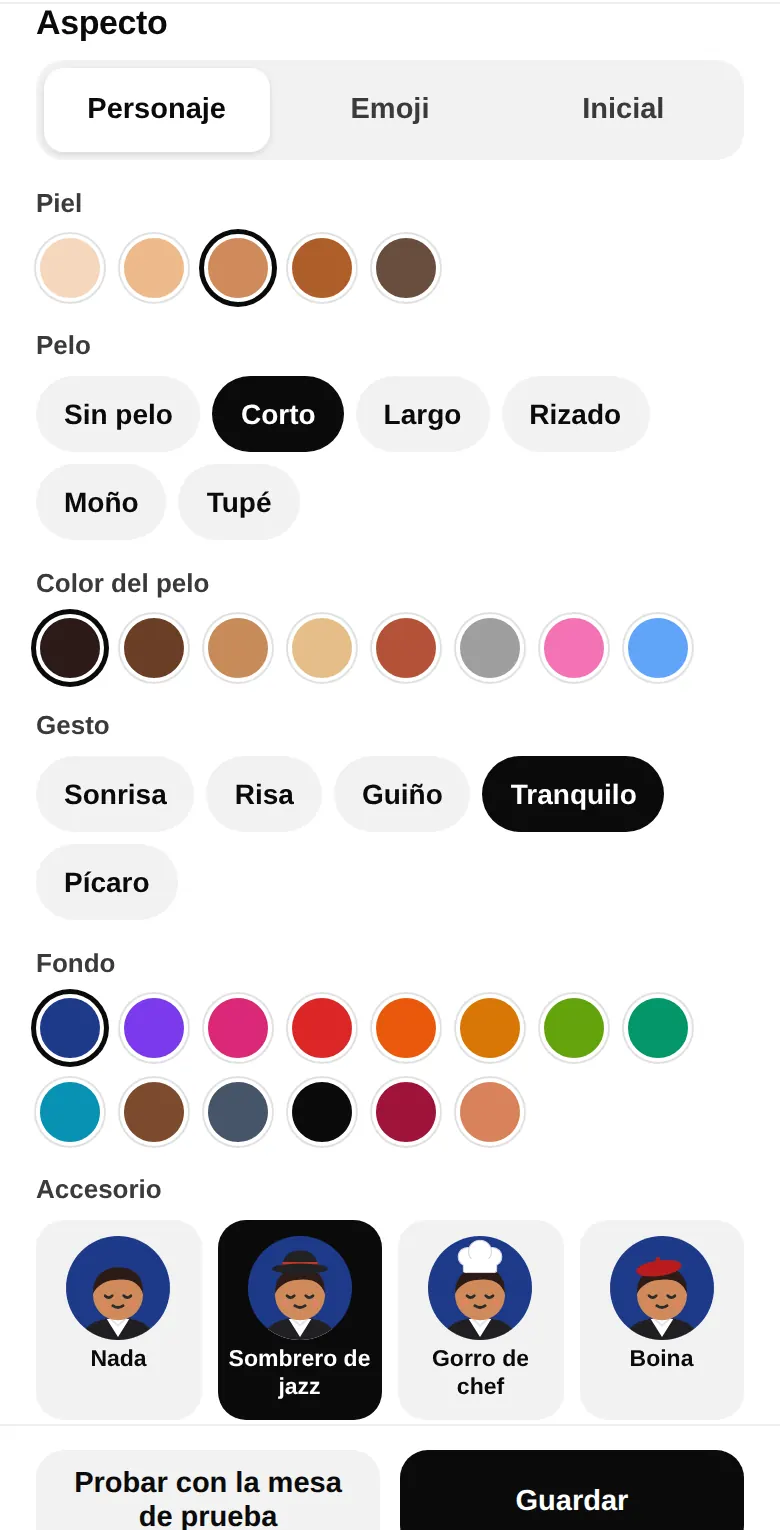
At the bottom there's also Try it at the test table: it saves whatever you've changed and opens the test table so you can talk to it as a guest. If you close with unsaved changes, it warns you («Unsaved changes»).
What the personality doesn't change
- It always says it's an AI: on the menu button, in the chat header (the «AI» tag) and if asked «Are you a person?».
- The way of speaking shows in the answers the AI writes. Buttons and automatic answers (allergens, prices, menu searches) always use the same friendly, informal tone.
- The personality never overrides the rules: it doesn't make anything up, and it respects the allergies and diets guests mention and your alcohol policy (see What it suggests and its limits).
Tips
- A short name that's easy to say works best («Lola», «Toni», «Lucía»).
- Write the greeting in the language most of your guests speak; there's already a translated greeting for everyone else.
- Use the backstory to give it character («Has spent 20 years behind the bar and knows which wine goes with every tapa»), not to give menu details: it takes those from your dishes.
- Pick as its favourite dish one that comes out well from the kitchen and gives you a good margin.
Common problems
| You see this | What's happening | What to do |
|---|---|---|
| «The name needs at least 2 letters.» | The name is too short. | Type a name of 2 to 20 characters. |
| «20 characters at most.» | The name is too long. | Shorten it. |
| A warning under the name with Use «…» | The name belongs to a famous person or a brand, or isn't allowed. | Tap the alternative or type another one. |
| «120 characters at most.» (or 300) | The greeting or the backstory is too long. | Shorten them. |
| «Couldn't save. Please try again.» | The change wasn't saved. | Check your connection and tap Save again. |
| You don't see «Create your waiter» | You signed in with a team PIN. | Sign in with the owner's account. |