
Your panel at a glance
What's in each part of the menu and how to get around quickly.
Updated 26 October 2026
On this page
How to get in
- From your menu: your address followed by /admin, for example yourvenue.thefoodplease.com/admin.
- From thefoodplease.com: Go to my panel, type your venue's address and it takes you to its sign-in page.
- You sign in with your email and password, or with Apple, Google or your mobile number if you've linked them (see Team and permissions).
It works in the browser on your phone, tablet or computer. There's nothing to install.
How the menu is organised
The menu is grouped into sections. Your day-to-day tools are always one tap away; everything else sits inside its section:
- Kitchen: the black button at the top, which opens the kitchen screen.
- Live: what's happening right now.
- Floor, always open: Orders, Tables, Cash register and Bookings.
- Menu › Dishes, Sold out, Stock and QR.
- Guests › Customers, Reviews and Stamps.
- Business › Your business, Report and Invoices.
- AI › AI waiter, AI photos and Credits.
- Settings › Modules, Billing, Team, Notifications, Payments, Your profile and My venues.
- Right at the bottom: See the guide and Help and support.
In this manual, a path like Menu › QR means: the Menu section and, inside it, QR. Each person only sees what their role allows (see Who does what) and what your venue has signed up for.
When you're on a page within a section, its sister pages appear at the top as a row of buttons (for example, in Menu: Dishes · Sold out · Stock · QR), so you can jump between them without going back to the menu.
On a computer
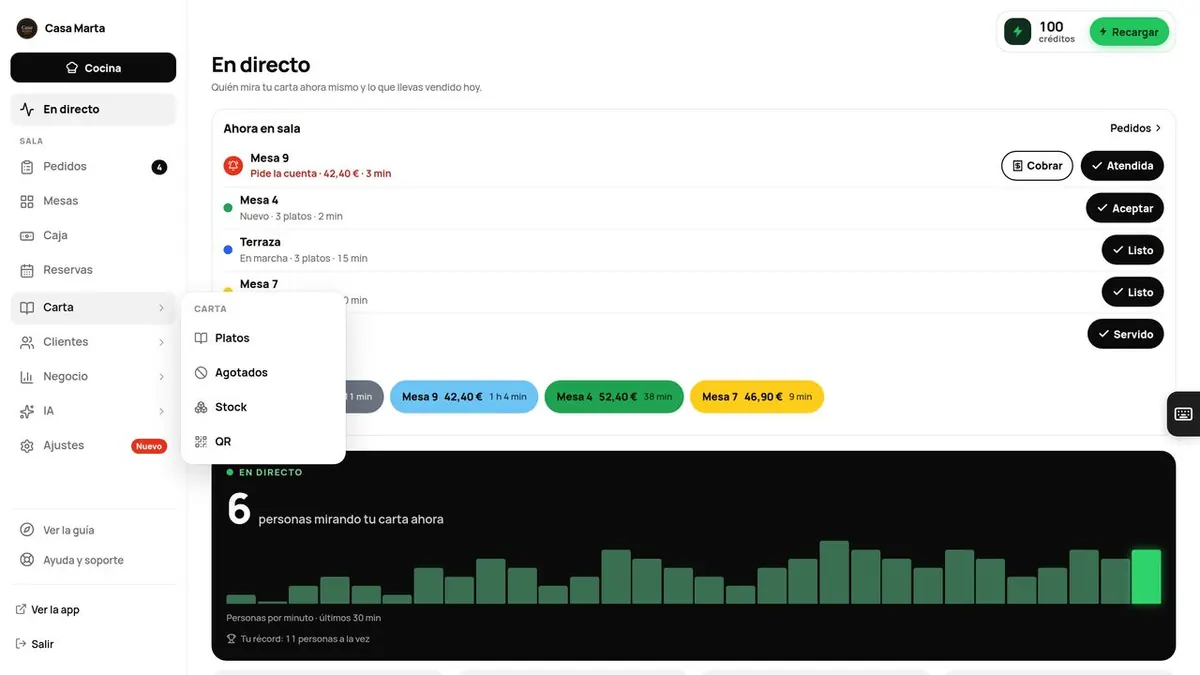
- The menu is in the left-hand sidebar. Floor is always expanded.
- The other sections take up a single row each. With a mouse, hovering over one opens its submenu alongside: one click and you're on the page. With your finger (touchscreens), tapping the section opens the last page you visited in it.
- Numbers let you know what needs attention: active orders, open tables or ingredients running low. If a page in a section has something new, the section carries a label («New», for example).
- At the bottom you have View app (opens your menu in another tab) and Sign out.
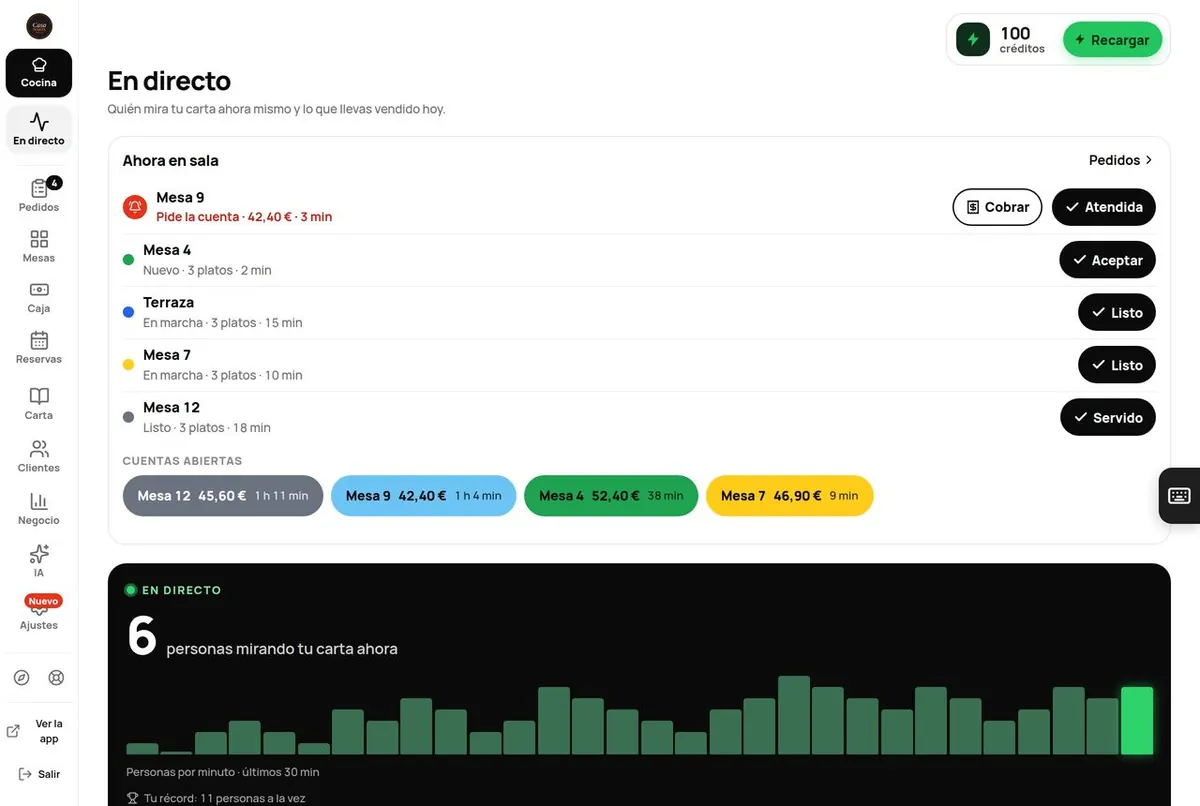
- On medium-sized screens, such as a laptop, the sidebar becomes narrow: one icon per section with its name underneath.
On a phone
- At the top: your venue's name and a few icons: Help and support (the lifebuoy), View my menu and Kitchen.
- At the bottom, a bar with what you use most:
- Owner and manager: Live · Orders · Tables · Dishes · More.
- Waiter: Orders · Tables · Cash register · Bookings · Sold out, with no «More»: everything one tap away.
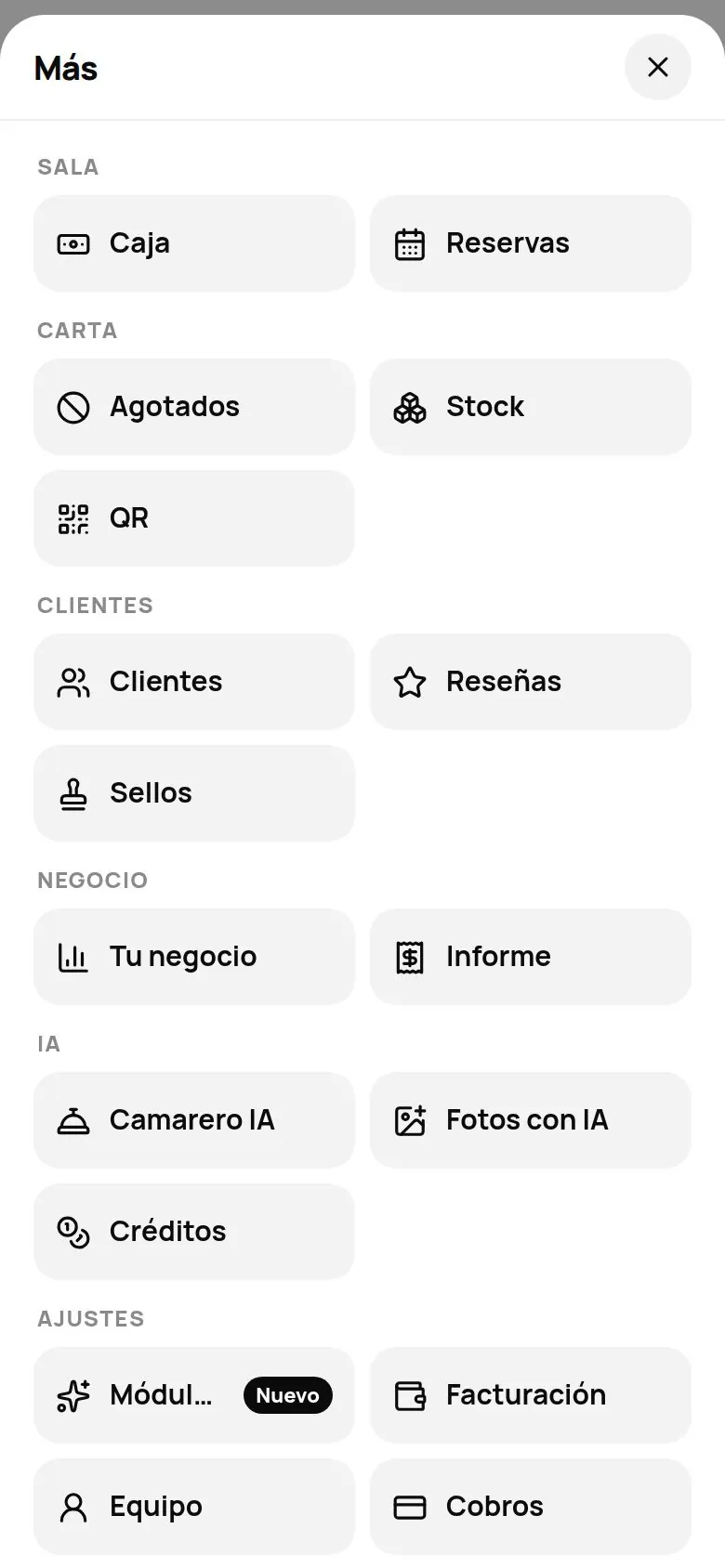
- More opens a sheet with everything else, grouped by section (Floor, Menu, Guests, Business, AI and Settings): one tap and you're on the page.
What's in each part of the menu
| Menu | What it's for | More info |
|---|---|---|
| Live\ | «On the floor now», who's looking at your menu and what you've sold so far today. It's the first thing you see. | Below |
| Floor | ||
| Orders\ | What guests order, the moment they order it. | Orders |
| Tables\ | Open tabs: take payment, split the bill or free up the table. | Tables |
| Cash register\ | Open the drawer, put cash in and take it out, end of day. | Cash register |
| Bookings\ | Accept or decline with one tap. | Bookings |
| Menu | ||
| Menu › Dishes\ | Your menu: dishes, options, set menu, categories, languages, design and venue settings. | Dishes |
| Menu › Sold out\ | Mark what's run out today with one tap. | Sold out |
| Menu › Stock\ | Ingredients, recipe costing and inventory (with the module). | Stock |
| Menu › QR\ | Your menu QR code and table signs. | QR |
| Guests | ||
| Guests › Customers\ | Who orders from you and how often they come back. | Club |
| Guests › Reviews\ | The ones that go to Google and the ones sent to you privately. | Reviews |
| Guests › Stamps\ | The stamp card (opens its page in Modules). | Stamps |
| Business | ||
| Business › Your business\ | What you sell and what you could improve. | Your business |
| Business › Report\ | Sales, payments and the day's dishes. | Report |
| Business › Invoices\ | Invoices issued (if you invoice through The Food Please). | Invoices |
| AI | ||
| AI › AI waiter\ | Your AI-powered waiter (opens its page in Modules). | AI Waiter |
| AI › AI photos\ | Takes you to Dishes: open a dish and tap «AI photo». | Photos |
| AI › Credits\ | Your balance for AI. | Credits |
| Settings | ||
| Settings › Modules\ | Activate, switch on and switch off the extras you add to your plan. | Plans |
| Settings › Billing\ | Your The Food Please plan, your payments and your invoices. | Your subscription |
| Settings › Team\ | Your team, with their PINs and permissions. | Team |
| Settings › Notifications\ | Instant alerts on every phone, tablet or computer, and what each one is alerted about. | Notifications |
| Settings › Payments\ | Payments through the app, at the table and in advance. | Payments |
| Settings › Your profile\ | Your name and your PIN, if you signed in with your owner PIN. | Team |
| Settings › My venues\ | If you have more than one venue. | Multiple venues |
| Right at the bottom | ||
| See the guide\ | Opens the welcome guide again. | Getting started |
| Help and support\ | Quick answers and how to contact us. | Support |
If you switch off a module in Settings › Modules › Turn on and off, its page disappears from the menu until you switch it back on.
«Live»
This is the screen you land on (if you're the owner or a manager). It refreshes itself every few seconds:
- On the floor now: right at the top, calls and orders in progress, each with a button for the next step (Done, Accept, Ready, Served), and Open tabs so you can take payment in two taps. We explain it in Orders.
- How many people are looking at your menu right now, and a chart of the last 30 minutes, with your record.
- Today: sales and orders, compared with the same day last week at this time.
- Most viewed right now, Tables looking at the menu and Languages of your viewers.
- Latest orders, with See orders. When one comes in, an alert pops up: «New order · Table 4 · 12.00 €».
If your guests are looking at the menu but you don't have ordering switched on, you'll see how many people couldn't order from the table, with Turn on ordering.
Other things you'll see
- Free trial · X / 14 days: while you're on the trial, owner only. The bar turns orange with 2–3 days left and red with 0–1. With Activate plan you move to a paid plan (see Your subscription).
- Your credits (owner only): your balance for AI, with ⚡ Top up. On a computer, in the card at the bottom of the sidebar, above your name; on a phone, in the chip on Live.
- Your name, at the bottom of the sidebar (if you signed in with a PIN): your name and your role, and the round button to sign out («See you»).
- The «Turn on notifications on this device» strip in Orders, until you turn on alerts on that device (see Notifications).
- Getting started · N of 5: in Orders, the 5 steps to get going (see Getting started).
- Offline: a black strip if the internet drops. «What you see is the last thing that loaded. Changes aren't saved until you're back online.» It disappears by itself when the connection returns.
- Important notices at the top, such as the one about Veri*factu (Spain's tax-compliant invoicing system) or the data agreement (see Privacy).
The welcome guide
The first time you open the panel on a phone, tablet or computer, a short guide appears: one screen for each part of the panel (orders and kitchen, tables, till, menu, notifications…), with one sentence and a screenshot. Each person only sees what their role can do: a waiter doesn't see invoices or the team.
- Move on with Next (or by swiping) and skip it whenever you like with Skip.
- It won't show again for that person on that device. To see it again: See the guide (the owner) or the «?» on any screen › See the welcome guide.
«How does this work?» on every screen
Next to each screen's title there's a «?» (on a phone, at the top right; in Kitchen, in its bar). It opens a short sheet with what the screen does, the most common steps, common mistakes and Read in the manual, which opens its part of this manual.
Some screens also show Show me where: it dims the panel and points at the buttons one by one.
Help and support, inside the panel
Press Help and support (on a phone, the «?» at the top › All help). A sheet opens with:
- At the top, 📘 Full manual: opens this manual in a new tab.
- A search box («Search: menu, QR, allergens…») and step-by-step answers, each with a Go there button that takes you to the right screen and, where there is one, See it in the manual, which opens the matching page of this manual.
- At the end, «Can't find it? Write to us», with WhatsApp and email (see Contact and support).