
Top up and see your history
Buy a pack in a minute.
Updated 26 October 2026
On this page
Buying a pack, step by step
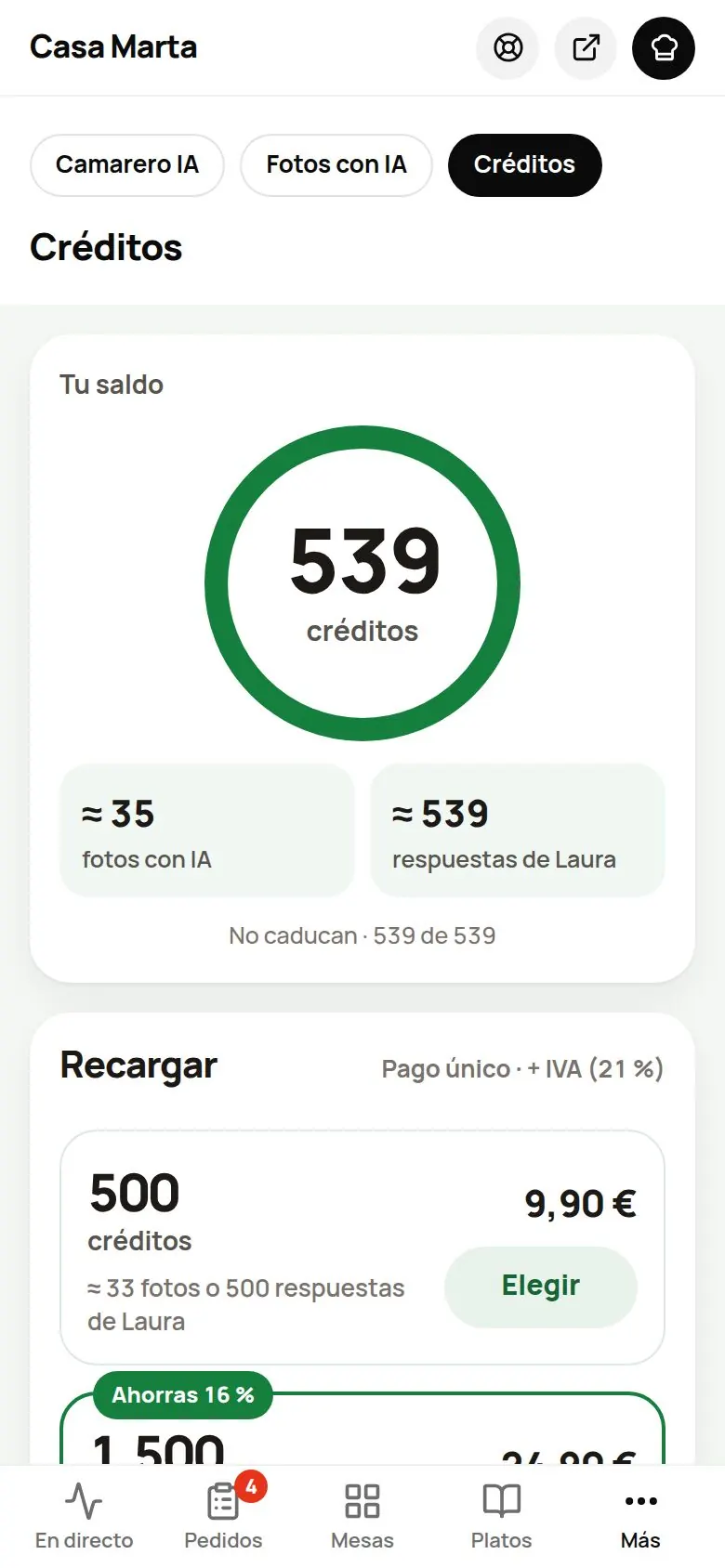
- Go to AI › Credits, or tap ⚡ Top up on the credits chip.
- Under Top up, the 1,500 pack is selected. For a different one, tap Choose on the one you want.
- Tap ⚡ Buy. You'll see «Opening checkout…».
- Stripe's secure payment page opens. Check the total with VAT, enter your card and pay.
- You're taken back to your dashboard automatically. You'll see «Payment received. Adding your credits…» and, usually straight away, «Done! We added 500 credits: you now have 600.» (with your own figures).
If the balance takes a while, the dashboard checks again by itself. If after a few seconds it still hasn't gone up, you'll see «Payment done: your credits will show up in a few minutes.». Don't pay again: wait a little and reload the page.
If you cancel on the payment page, you'll see «You cancelled the payment: nothing has been charged.»
From the app
- In The Food Please app, go to AI › Credits (or tap the credits chip under «More»).
- Choose a pack and tap Buy. Payment opens in your phone's browser, on Stripe's secure page.
- Pay and go back to the app. You'll see «Payment received. Adding your credits…» and, within a few seconds, the new balance: «Done! We added 500 credits: you now have 600.» (with your own figures).
If it takes longer, you'll see «If you've paid, your credits will show up in a few minutes. If you cancelled, nothing has been charged.». Don't pay again: wait a little and open Credits again.
The receipt
Every credit purchase is a one-off card payment, processed by Stripe, and it generates its own invoice. For your The Food Please invoices, go to Settings › Billing › Manage payment and invoices (we explain it in Your subscription and payments). If you can't find the one for a credit purchase, get in touch (Contact and support).
Seeing your history
In AI › Credits, the History block shows the last 6; with See all you see more. Each row has its date and what it adds or takes away:
| Entry | What it is |
|---|---|
| Welcome gift +100 | Your 100 gift credits. |
| Bought 500 credits +500 | A pack you bought. |
| AI photo · [dish] −15 | An AI photo of that dish. |
| Refund · [dish] +15 | An AI photo that didn't work out: we give you the credits back. |
| AI waiter answers (12) −12 | A day's AI answers beyond the month's 300, grouped into one row. |
| Gift from The Food Please / Adjustment by The Food Please | Credits we've given you or corrected ourselves. |
AI Waiter card inside Credits
If you have the AI Waiter, the same tab shows its face, its name and its included answers: the bar, «42 of 300 used» (with your own figures) and when they renew, for example «Renews on 1 Nov». From there you can go to its page.
Common problems
| You see this | What's happening | What to do |
|---|---|---|
| «Couldn't open checkout. Please try again.» | The payment page didn't open. | Tap Buy again. |
| «Payments aren't available right now. Please try again later.» | The payment service is down at the moment. | Try again later. |
| «Payment done: your credits will show up in a few minutes.» | The payment is confirmed but the balance hasn't updated yet. | Wait a few minutes and reload. If they don't appear, get in touch. |
| You don't see «Credits» in the menu | You signed in with the team PIN. | Sign in with the owner's account. |