
Your menu's design
Make your menu look like your venue.
Updated 26 October 2026
On this page
What it's for
Your menu carries your name, your logo and your colour, and you can choose from five designs. You also decide which buttons guests see at the top (directions, call, book…), whether the menu shows in light or dark mode, and what your info page says.
Choosing the design
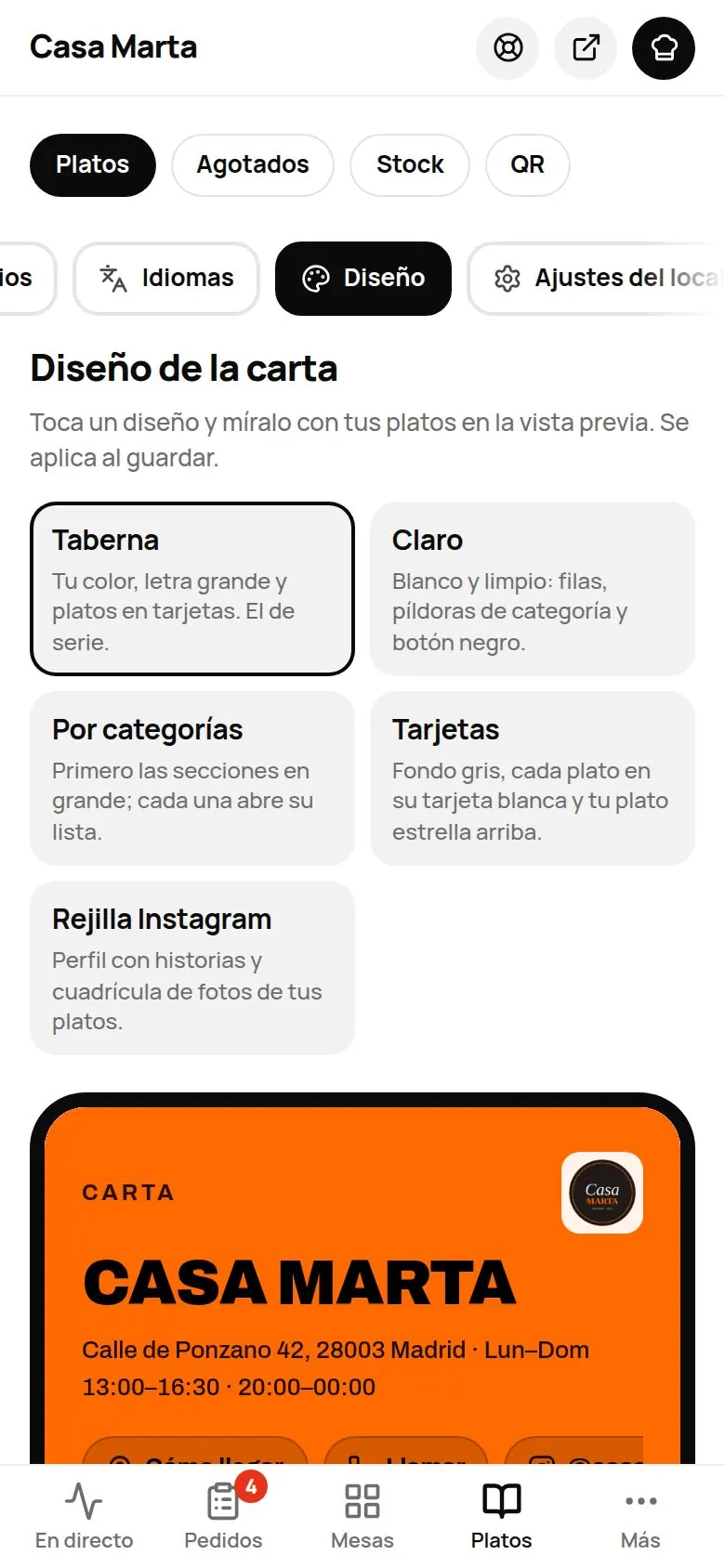
- Go to Menu › Dishes › Design.
- Tap a design. Below it you'll see it on a phone with your dishes.
- Press Save. Until you save, it says «Not saved».
| Design | What it looks like |
|---|---|
| Tavern | Your colour, large type and dishes on cards. The default. |
| Light | Clean and white: rows, category pills and a black button. |
| By category | The sections come first, in large; each one opens its list. |
| Cards | Grey background, each dish on its own white card and your star dish at the top. |
| Instagram grid | A profile with stories and a photo grid of your dishes. Ideal if you have good photos. It doesn't include the allergen filter. |
In The Food Please app ("I'm at a venue") your menu shows the same design you choose here: the same header, the same categories and the same dishes. In the app, the grid does include the allergen filter (the button next to the categories).
Name, logo and colour
- Go to Menu › Dishes › Venue settings, Venue block.
- Upload your Logo, check the Name and choose your brand Colour.
- Press Save name, logo and colour. You'll see «Saved. Reloading to apply it.»
In the same block you add your address, opening hours, phone number, Instagram and legal details (see Privacy).
The buttons at the top of the menu
In Venue settings › Menu buttons you choose what guests see at the top. They're all on by default, and each one only shows if you've filled in that detail:
- Get directions (with your address), Call (with your phone number) and Instagram.
- Leave a review (with the Reviews module).
- Language picker (with 2 or more languages).
- Venue info: your info page.
- Book a table (with the Bookings module).
When they're off, they don't show on the menu or on the info page.
Light or dark
In Venue settings › More options › Menu appearance: Light (the default), Follow phone or Dark.
In The Food Please app the menu is always shown in light mode for now.
Your info page
Your menu has an info page (the «Info» button on the menu, or your address followed by /info). It shows your logo, the «About the venue» text, buttons to view the menu, book, get directions, call, WhatsApp, Instagram and leave a review, plus your opening hours and address.
You write the «About the venue» text in Venue settings › More options. For example: «Market cuisine since 1987. Terrace all year.»
Guide for first-time guests
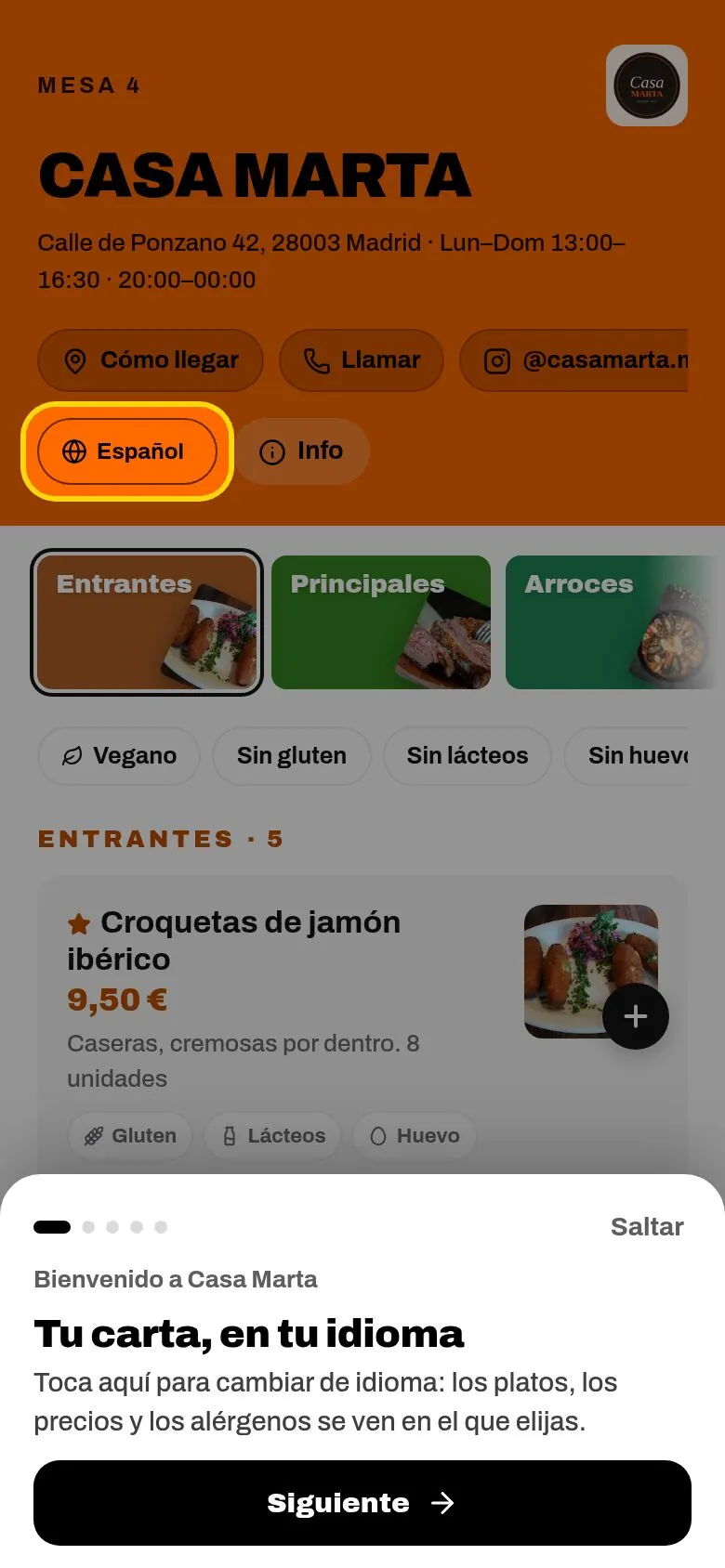
The first time someone opens your menu on their phone, they see a few short steps showing how ordering works here: the language, «Tap + to add», sending the order to the table and, if you have them, calling the waiter or paying from their phone. It shows only once on each phone, and guests can see it again with «See how to order».
It's on by default. To turn it off: Venue settings › Menu block › Guide for guests the first time.
Currency
In the Menu block you also choose the Currency. It's set to euros by default.
Your address and the menu footer
- Your menu lives at your The Food Please address, for example yourvenue.thefoodplease.com. You can't set up your own domain from the panel.
- The footer of your menu shows «The Food Please · Privacy · Legal notice · Cookies». Removing the «The Food Please» name is included in the Everything plan; your legal links always stay.
Tips
- Use the same colour as on your sign or social media: your guests will recognise your brand.
- Upload a good-quality logo, with a transparent background if you have one.
- Check the menu on your phone after every change: that's how your guests see it.
Common problems
| What happens | Why | What to do |
|---|---|---|
| You've changed the design but the menu looks the same | You didn't press Save. | Go back to Design and press Save. |
| You can't see «Save name, logo and colour» | It only appears when you change something. | Change the detail and it will appear. |
| The «Call» or «Get directions» button doesn't show | The phone number or address is missing, or the button is off. | Fill in the detail in the Venue block and check «Menu buttons». |
| The language picker doesn't show | Your menu only has one language. | Translate it (see Languages). |