
What your guests see
The table-side conversation, step by step, on each table's phone.
Updated 26 October 2026
On this page
What it's for
This page shows you, step by step, what your guest sees on their phone when they talk to your waiter. That way you know what to say if someone on your team or a guest asks you about it.
The waiter appears on your menu when the module is on and the Show the AI waiter on your menu switch is turned on. The screenshots are from a demo venue, with a sample waitress; on your menu, your own waiter and dishes appear.
1. The «Ask me» button
At the bottom right of the menu there's a button with your waiter's face and the text «Ask me · [name] · virtual waiter (AI)» (or «virtual host (AI)»). That way it's clear it's an AI before it's even opened. If the guest has the order bar or the bill bar open, the button moves up a little so it doesn't cover it.
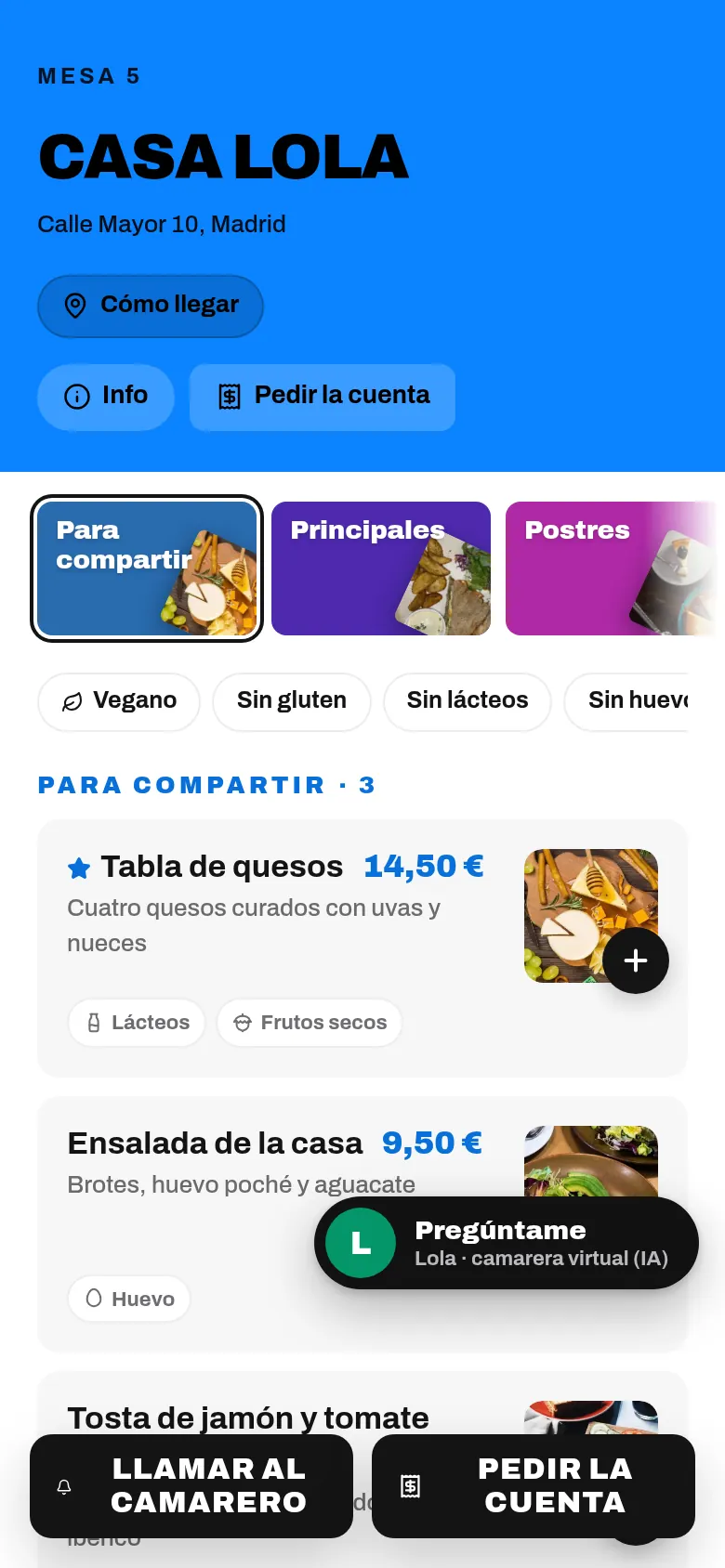
2. The greeting
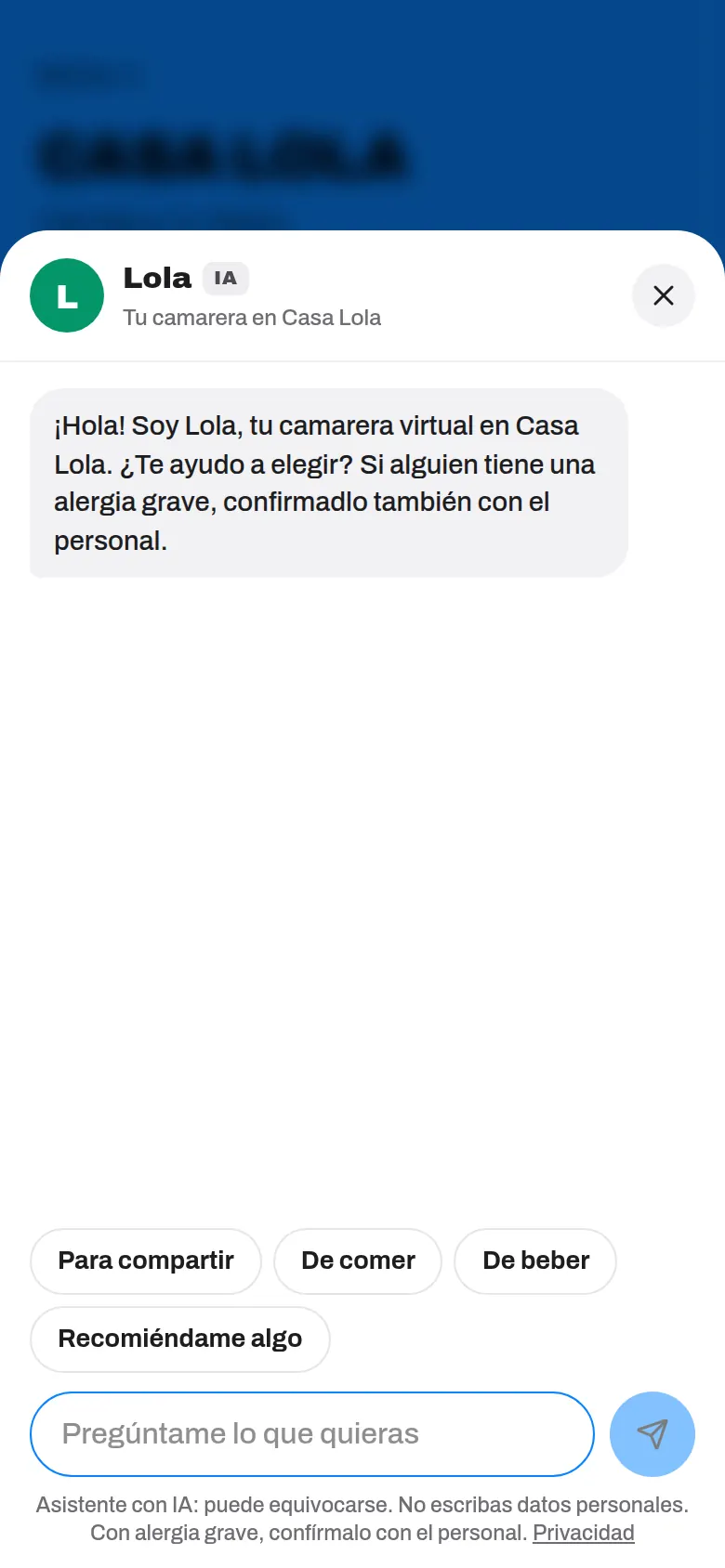
Tapping it opens the chat. At the top: the waiter's face and name, the AI tag and «Your waiter at [your venue]». Then the greeting you wrote when you created it or, if you didn't write one (or the guest is viewing the menu in another language), the standard one: «Hi! I'm [name], your virtual waiter at [your venue]. Can I help you choose? If anyone has a severe allergy, please also check with the staff.»
Below that, buttons to get started without typing, which change with the time of day (for example, «Breakfast» in the morning, or «Something to eat» and «To drink» at lunchtime). Guests can also type whatever they like.
3. A table-side conversation, with buttons
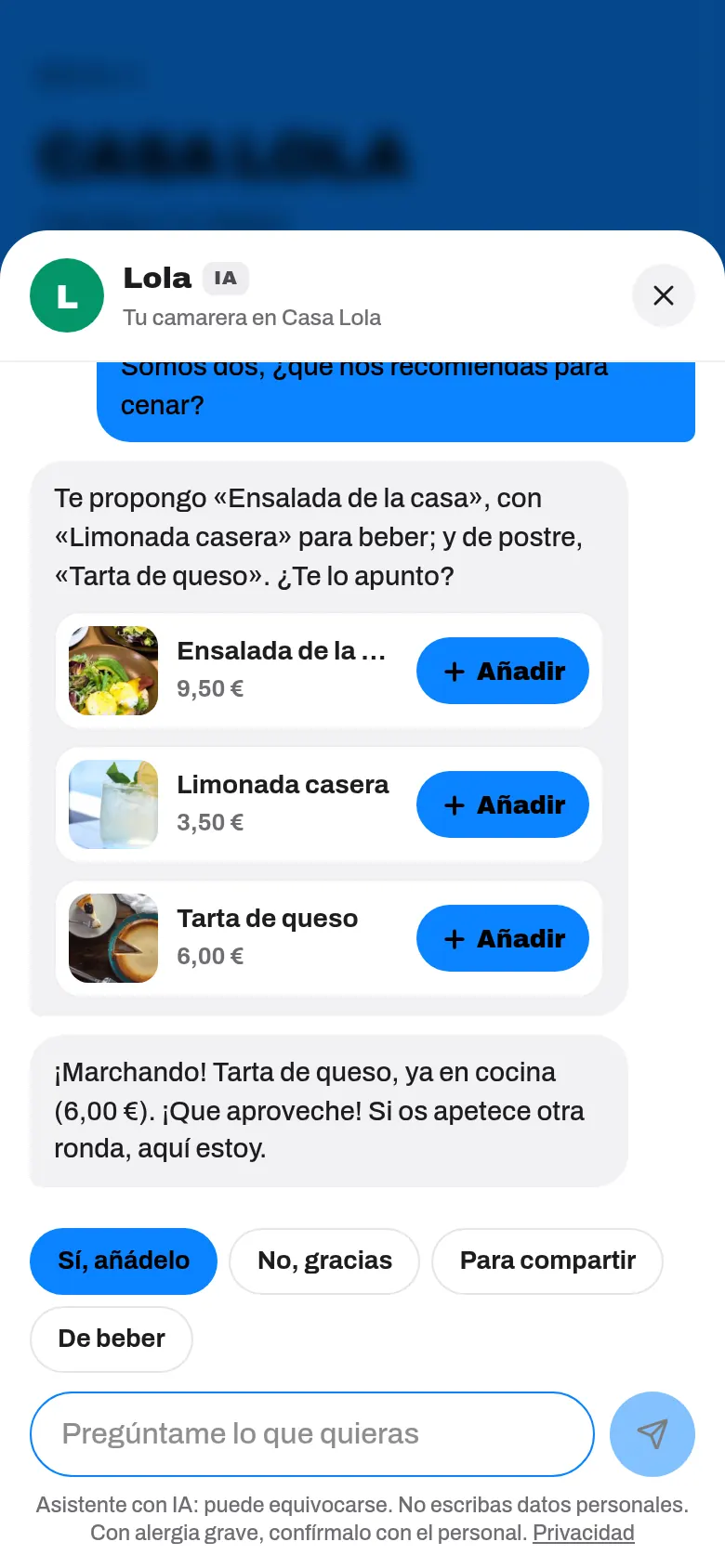
The waiter answers in one to three sentences and, when it suggests dishes, shows them as cards with a photo, name, price and the Add button. Below every answer there are buttons with the next step, just as a waiter would offer at the table: «Yes, add it», «No, thanks», «To drink», «Dessert», «A coffee», «Another round», «More options», «Send order»…
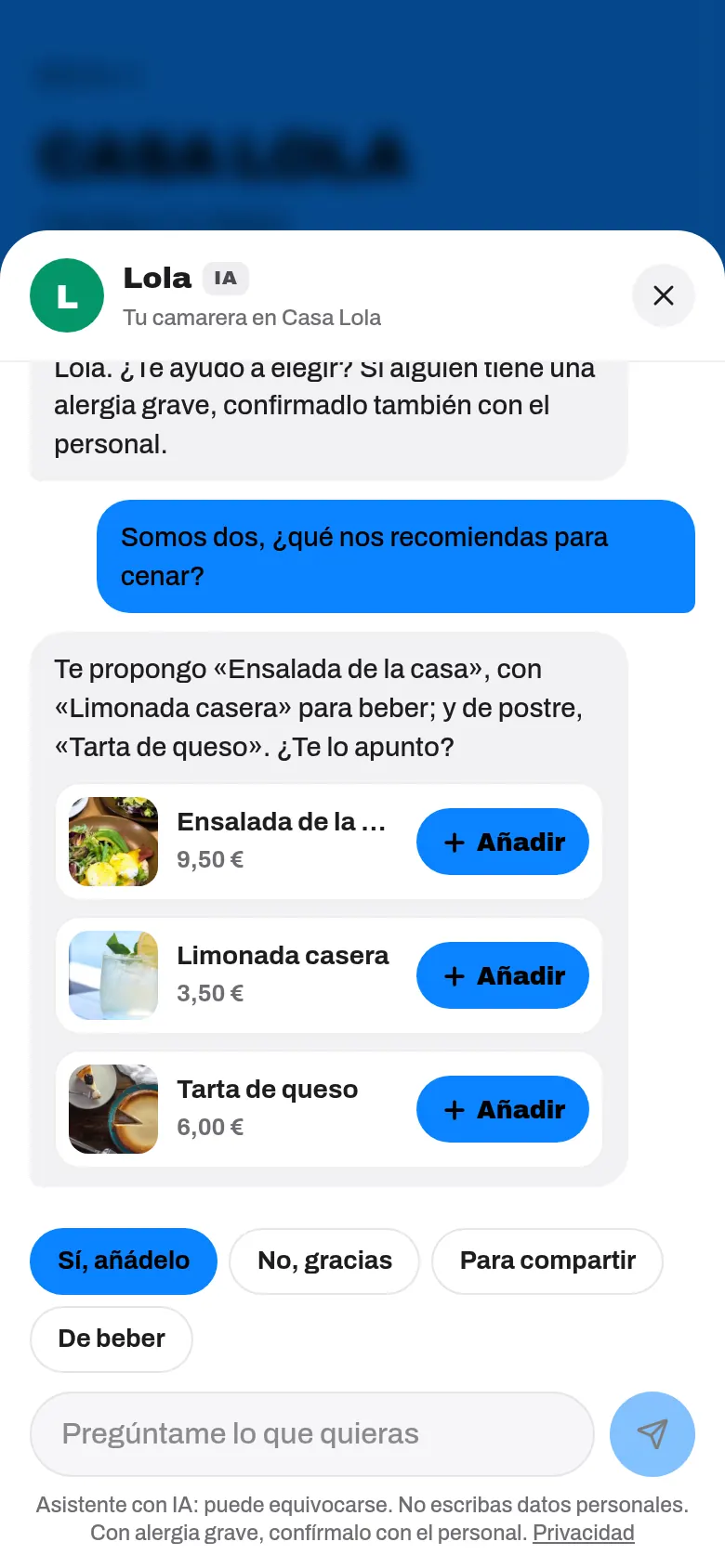
- It understands table talk: «yes», «OK», «another one», «2 beers, please», «some patatas bravas», «there are four of us», «the bill». Anything the guest clearly orders is added automatically when you have ordering turned on.
- If it doesn't understand, it never answers «I can't find that»: it asks «Are you after something to eat, to drink, or a dessert?» with its buttons.
- Options without leaving the chat: if the dish has options (size, how it's cooked, milk…), the options sheet opens on top of the conversation. If the default options are fine and don't change the price, it's added straight away.
- «View dish» opens the dish page and, when it's closed, goes back to the conversation.
- Quantities: if the dish is already in the order, its card shows − n + to remove one or add another (a real «another round»).
- With Gluten-free / allergens, it asks «Which allergen do you want to avoid?» and remembers the answer for the whole visit: it won't suggest anything containing it again. The same goes for a diet or for «no alcohol».
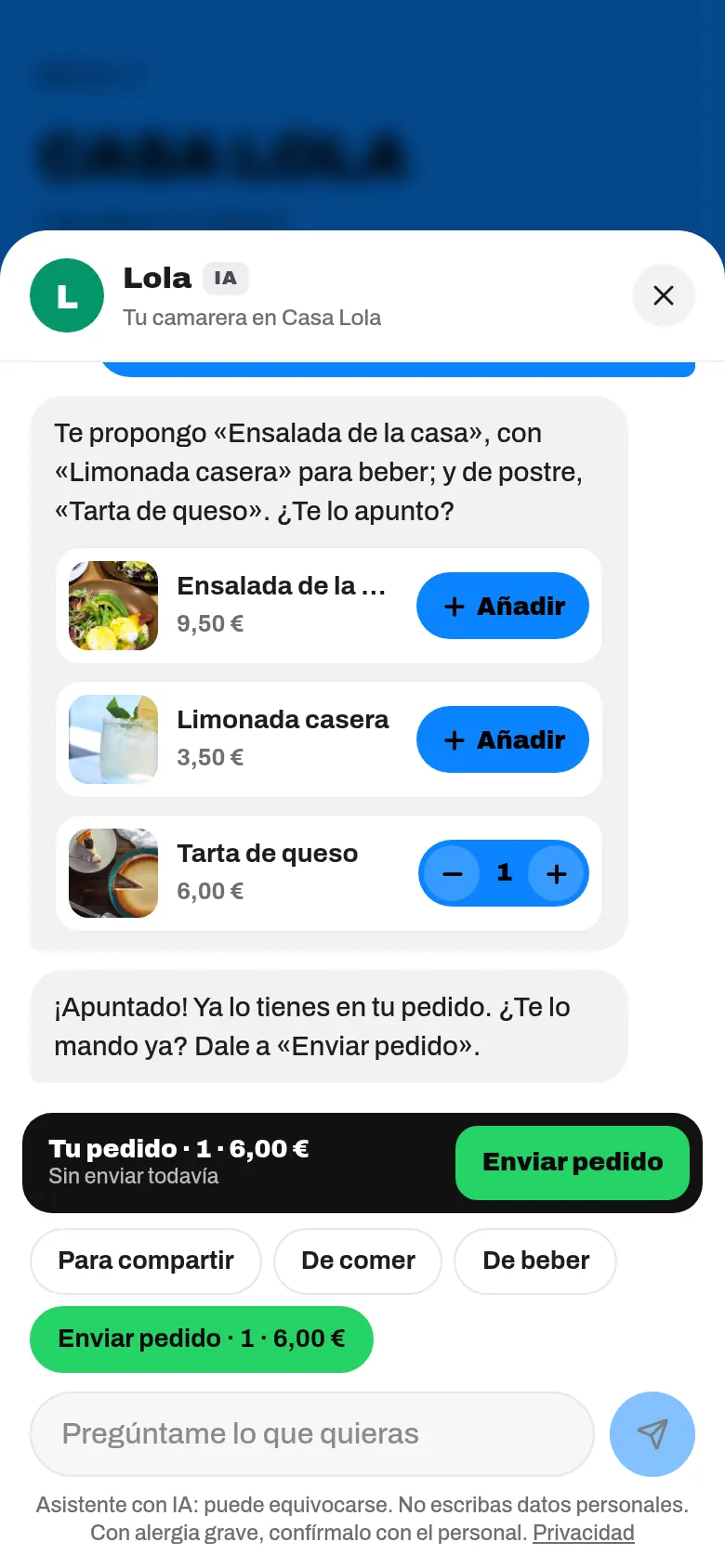
4. «Noted!»
Every time the guest adds something from the chat, the waiter says «Noted!» («That's N items, [total].») and suggests the next thing that's missing, in this order:
- If there's no food yet: something to nibble on.
- If there's food but no drink: a drink that goes with it (coffee or juice in the morning).
- With a main: dessert; with dessert: coffee.
- If drinks have already been sent: «Shall I bring another round of…?»
Each suggestion appears only once per visit. If the guest has an allergy or a diet, or is in the middle of mentioning one, it doesn't suggest anything on its own. When there's nothing left to suggest, it offers to send the order.
5. Sending the order
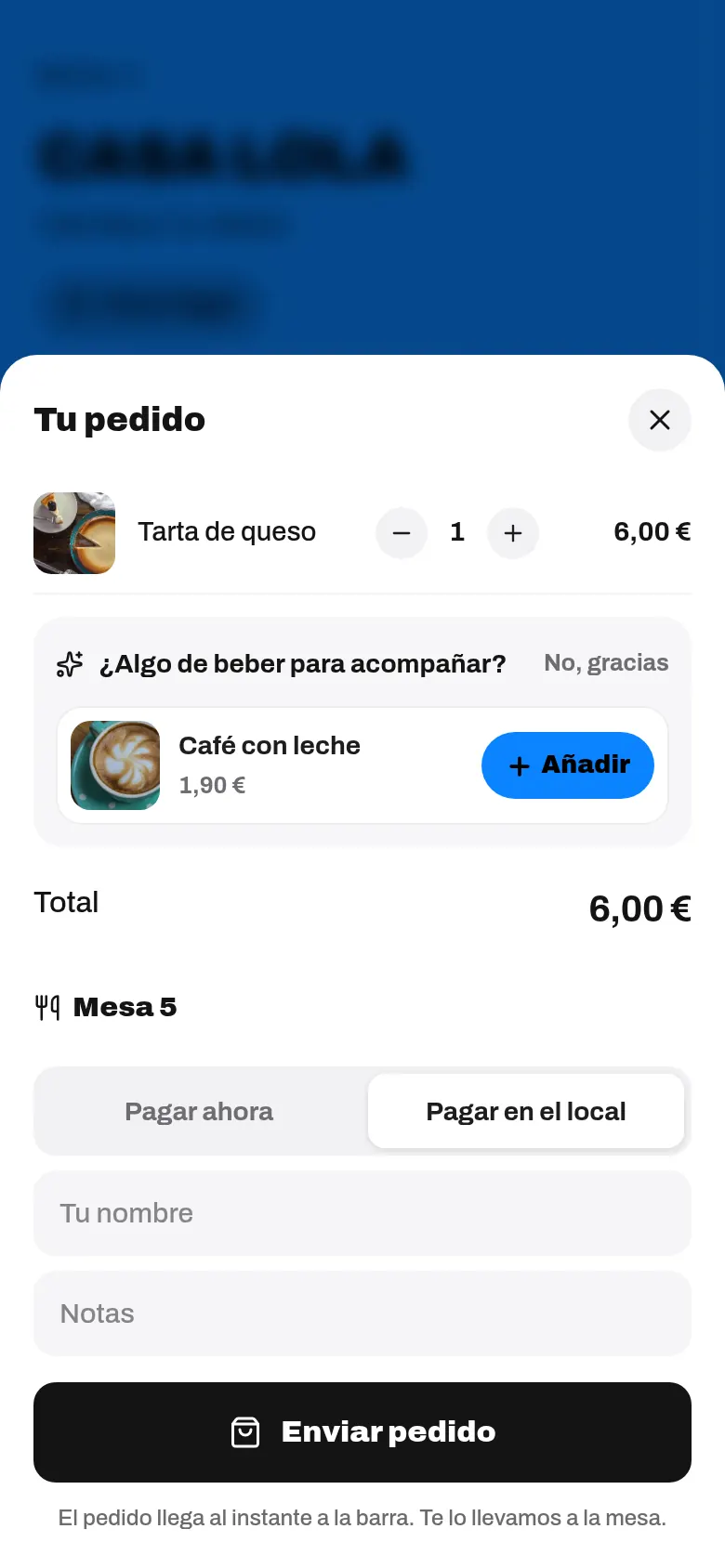
At the bottom of the chat there's the «Your order · N · [total]» bar with «Not sent yet» and the Send order button (it also appears as a button in the conversation: «Send order · N · [total]»). Tapping it opens the usual «Your order» sheet: the guest checks it, enters their table and, if needed, pays. The waiter never sends the order on its own.
Inside «Your order» there may be one last suggestion, one at a time: «Something to drink with that?», «Often ordered with…» or «A dessert or a coffee to finish?». If the guest taps No, thanks, it won't appear again during that visit. You can turn these suggestions off in What it suggests and its limits.
6. «Coming right up!»
Only when the order has really gone through (and, if it's paid online, once the payment is confirmed), the waiter says: «Coming right up! [what was ordered], now in the kitchen ([total]).» Then it offers another round or «When you're nearly done, shall I save you a dessert or a coffee?».
7. The bill, in the chat
If the guest types «the bill», «can I pay?» or «how much are we at?», the waiter shows them their table's summary with buttons to pay, split the bill or ask for an invoice. We explain it in The bill in the chat.
From a table with a QR code, the waiter can also call the waiter («Done. Someone's coming.») or ask the staff for the bill. If you have Bookings, it helps guests book a table.
It always says it's an AI
- If asked «Are you a person?», it answers that it's the venue's virtual waiter, an artificial intelligence.
- Below the chat it always says: «AI assistant: it can make mistakes. Don't enter personal data. If you have a severe allergy, check with the staff.», with a link to Privacy.
Languages
The waiter answers in the language the guest is viewing your menu in. Its buttons and automatic answers are available in all 8 menu languages: Spanish, English, French, German, Italian, Portuguese, Catalan and Japanese.
Limits worth knowing
- Each written question can be up to 300 characters long.
- Each guest can type up to 15 questions per visit. After that, the text box disappears and the buttons remain: «Carry on with the quick buttons above: they still answer. And the staff will be happy to help.»
- If an answer is slow, after 15 seconds it shows «This is taking longer than usual. Ask again or use the quick buttons.», with Ask again.
- If the 300 included answers run out in a month and you have no credits left, or the daily limit is reached, the waiter switches to basic mode: your guest sees no warning; the buttons, suggestions, the bill, «Noted!» and «Coming right up!» work as usual, and it answers written questions using your menu data.